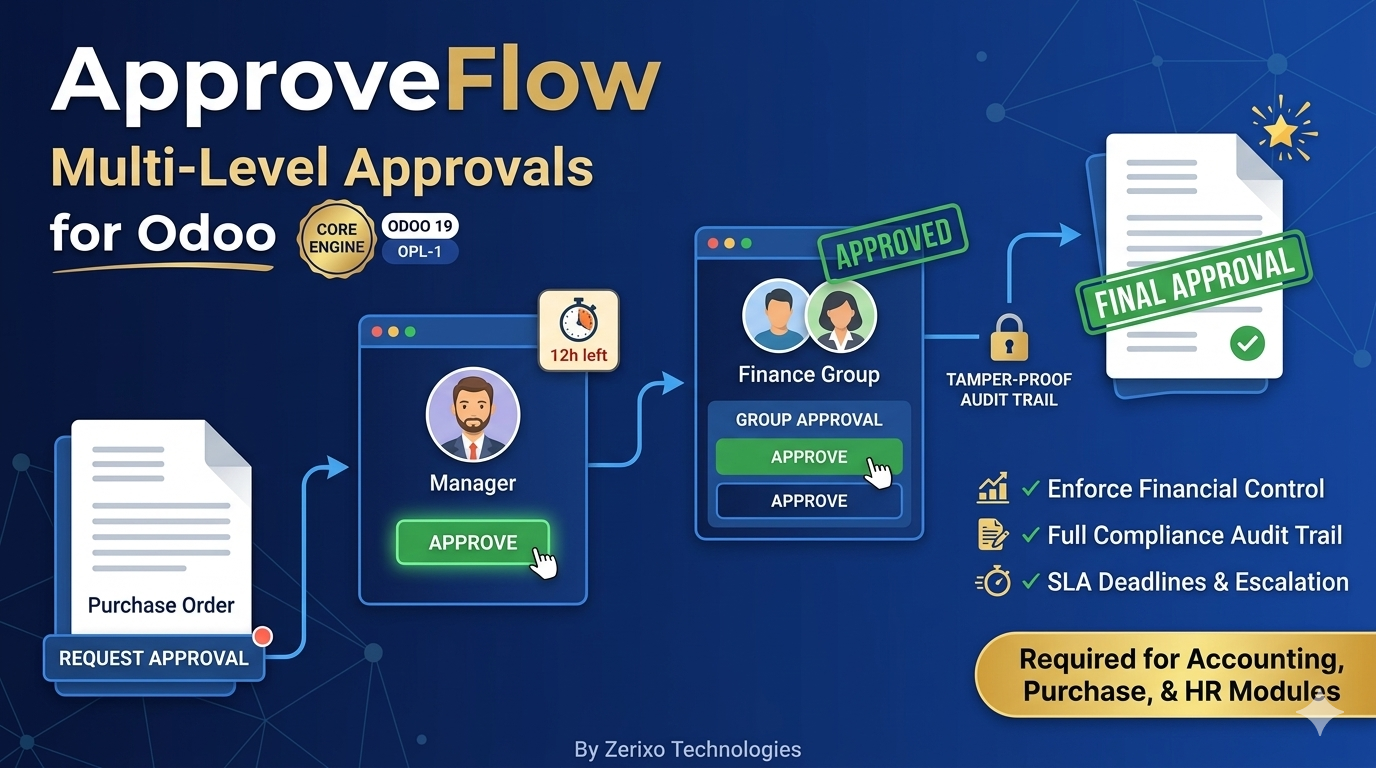
Enforce approval policies before money leaves your business. Build multi-level workflows with SLA deadlines, escalation, and full audit trail — without customization or developer effort.

Every day without proper controls is another day your finances are exposed. Here's what's silently happening right now.
Unapproved spending
Purchase orders confirmed and paid without anyone checking if they were budgeted or necessary.
Email-based approvals
Approval requests buried in inboxes. No record of who approved, when, or on what basis.
No audit trail
When auditors ask "who approved this $50k PO?" — nobody has a clear answer.
Single-person bottleneck
One approver on leave = everything blocked. No escalation, no delegation, no backup.
Post-approval amount changes
Approved for $5k, final invoice arrives for $12k. No rule to catch the discrepancy.
No SLA enforcement
Approvals sit idle for days. No deadline, no reminder, no escalation — just waiting.
ApproveFlow closes every one of these gaps —
Fix this with ApproveFlow →How It Works
No developer needed. Configure directly in the Odoo interface.
Go to Apps → search ApproveFlow → click Install. Dependencies are handled automatically.
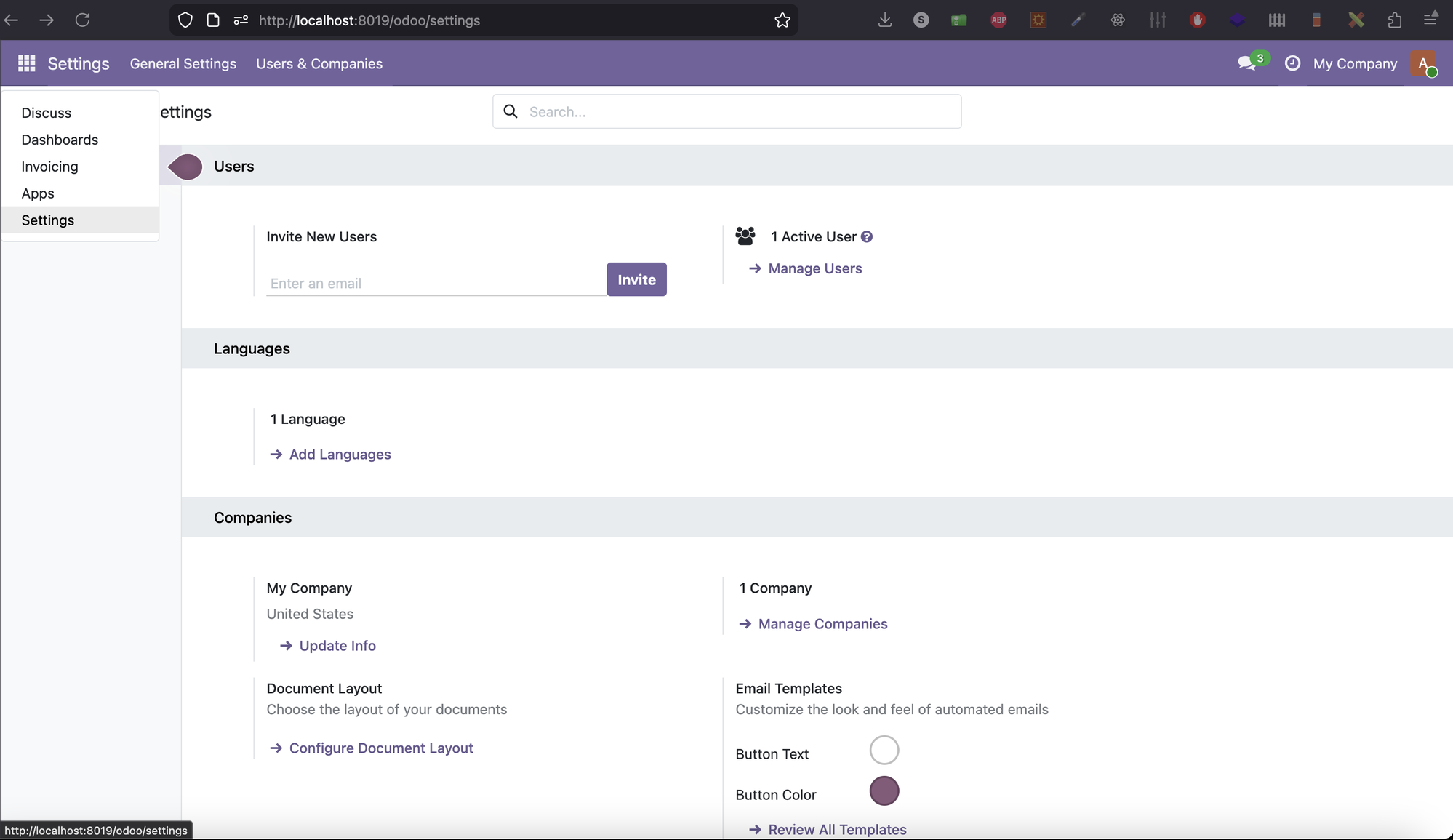
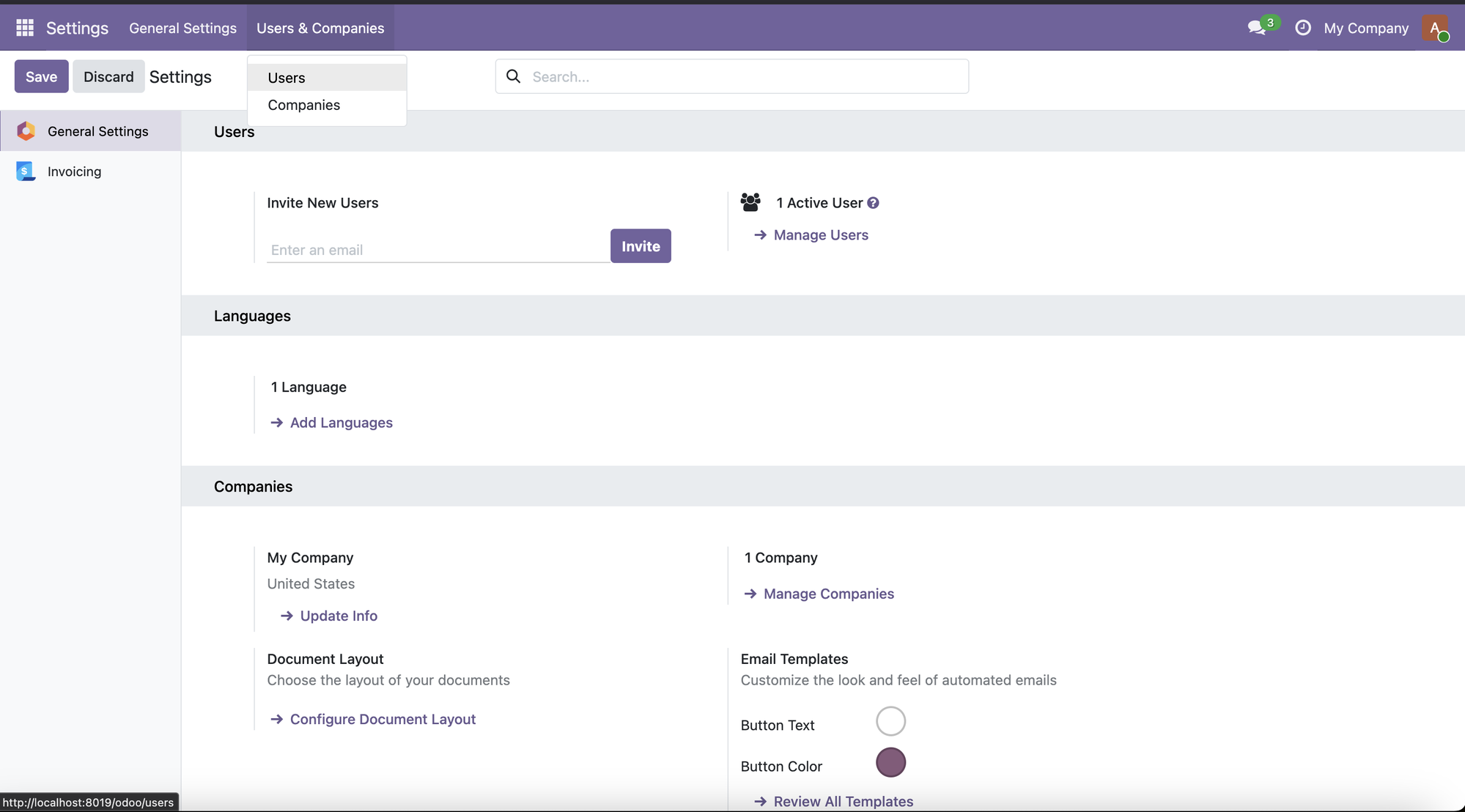
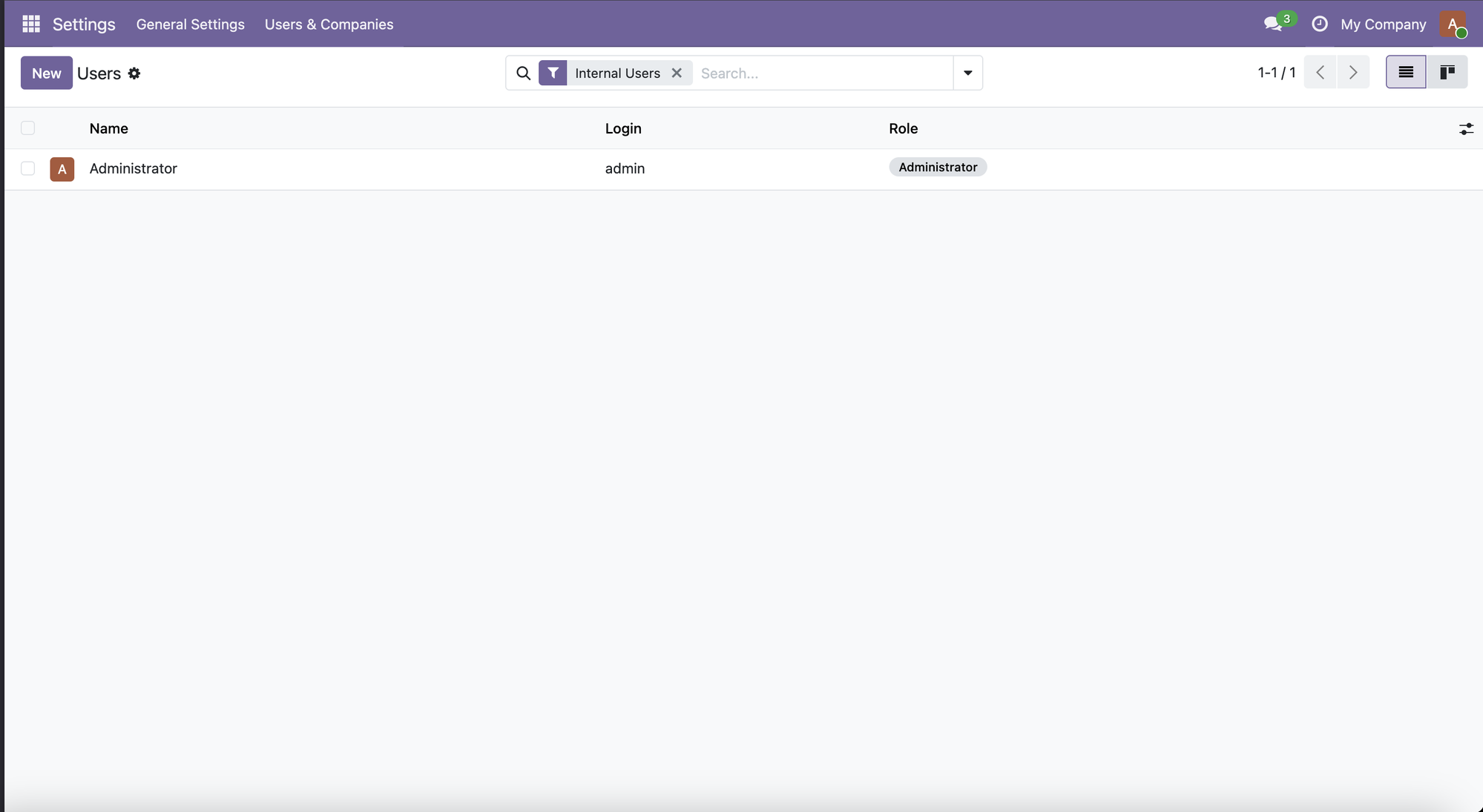
Go to Settings → Users & Companies → Users → click a user → set ApproveFlow role → Save.
Go to Approvals → Configuration → Approval Rules → New. Set the document type, condition, and assign approvers.
Open any Purchase Order, Vendor Bill, or Expense → click Request Approval. The system routes to the right approver automatically.
The approver gets an email, opens the request in Odoo, and clicks Approve or Reject. Multi-level requests automatically progress to the next level.
Rule Configuration
Design approval policies that automatically trigger based on amount, department, or document owner. Support single-level, multi-level sequential, and parallel approval chains — each with independent SLA hours.

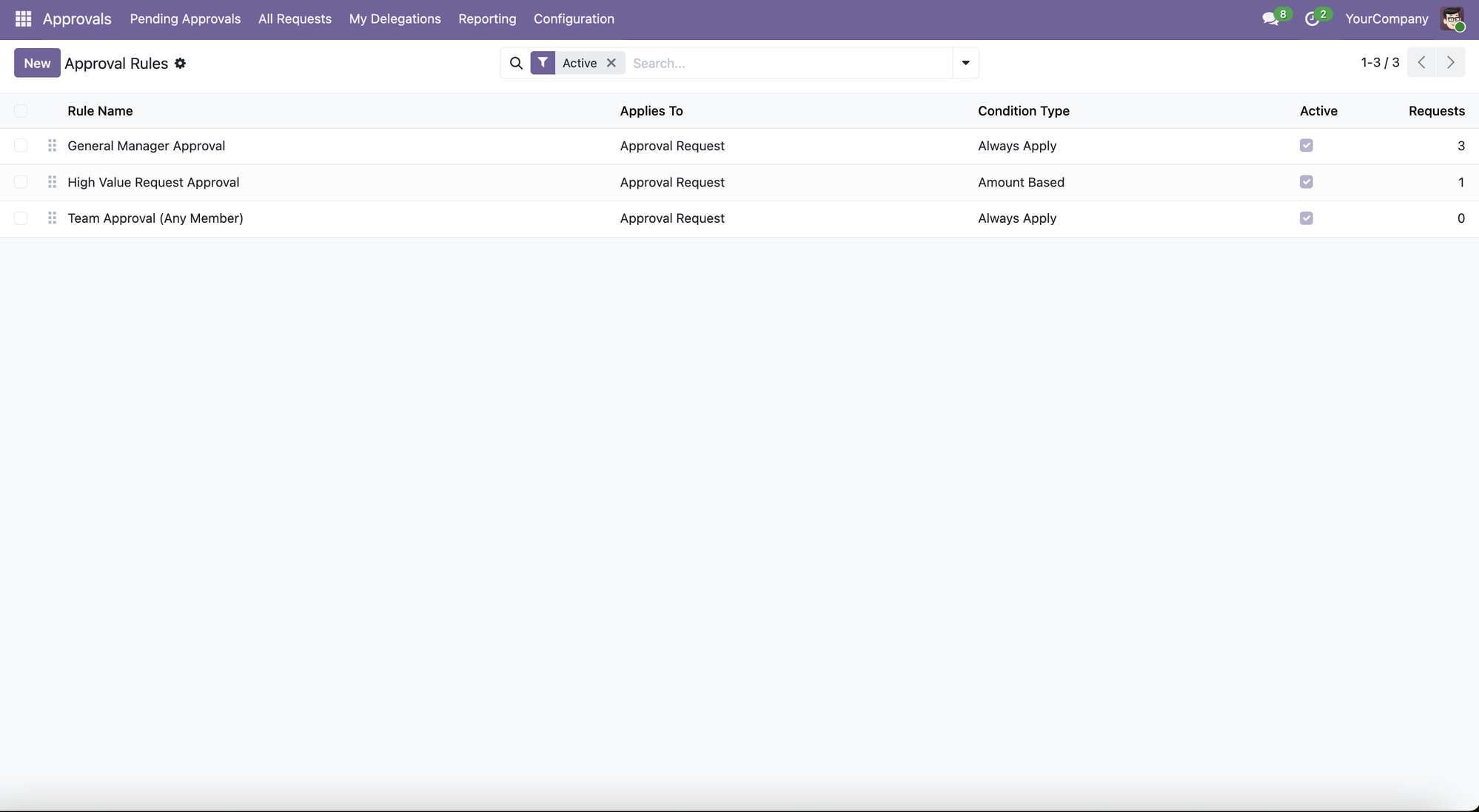
Approval Rules list — All configured rules at a glance: rule name, what it applies to, condition type (Always Apply / Amount Based), active status, and total request count. Create, reorder, or disable rules without any coding.

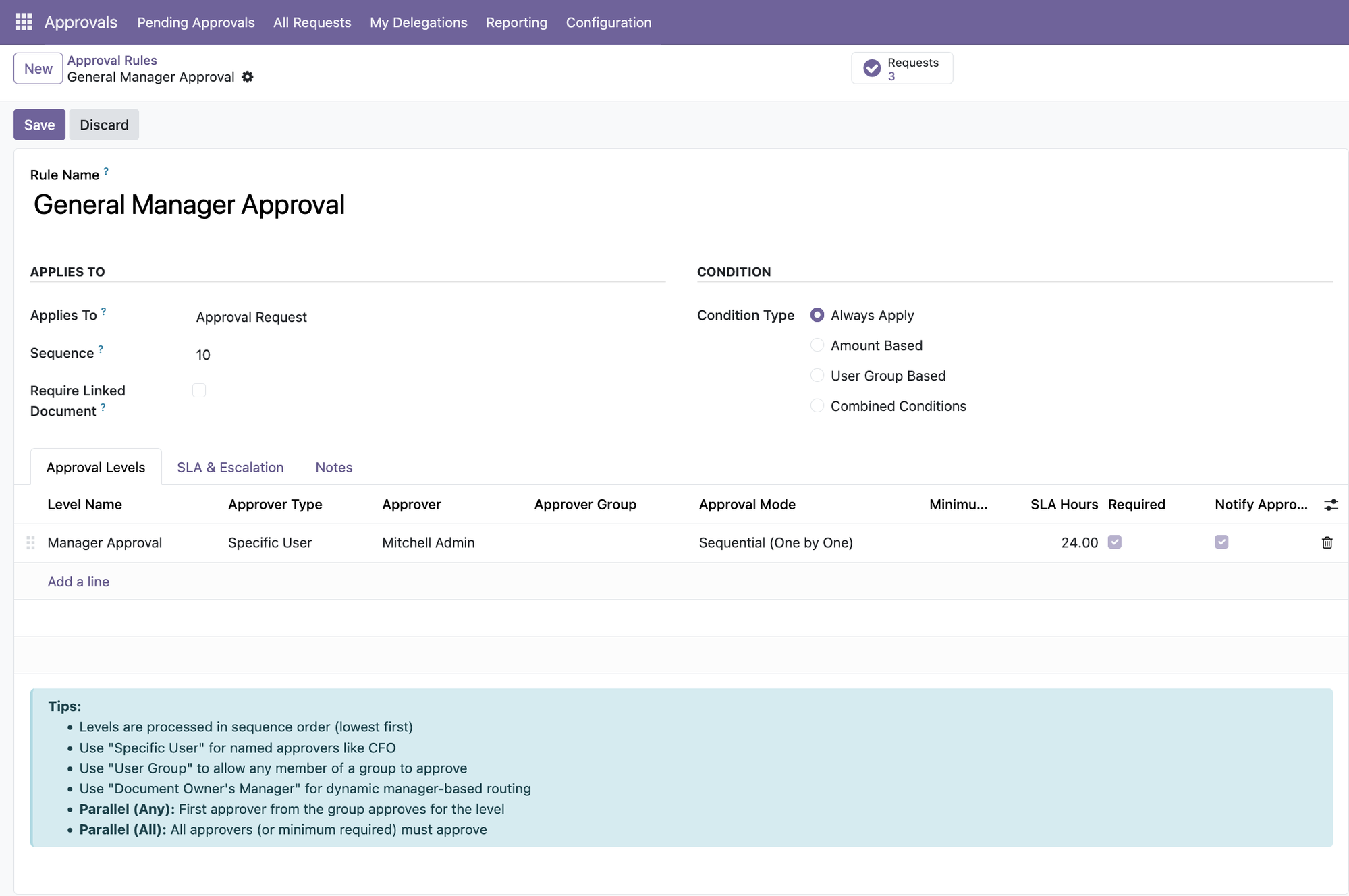
Always Apply rule — Single approver (Mitchell Admin), 24h SLA. Every request goes through manager sign-off.

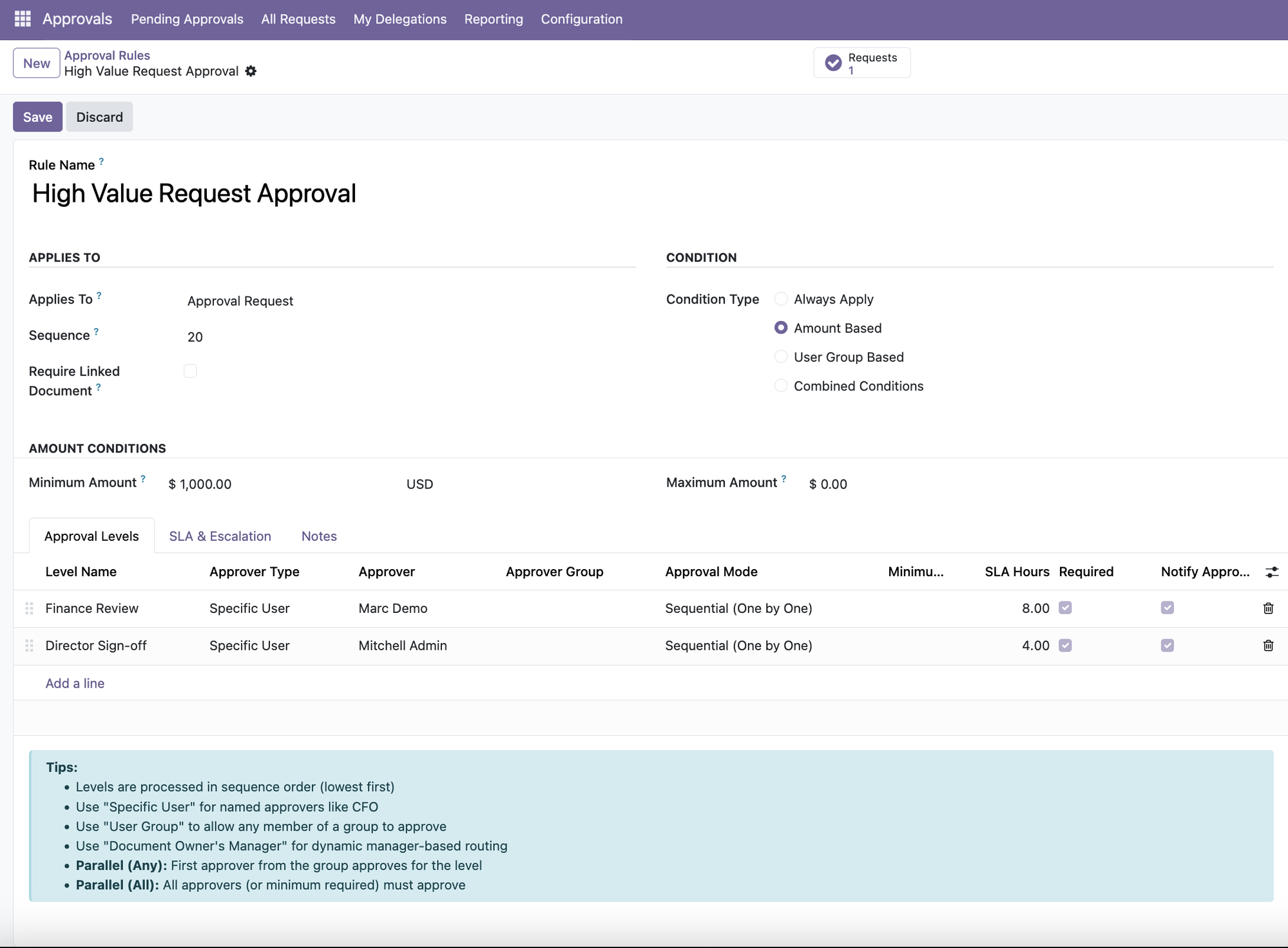
Amount-based rule (≥$1,000) — 2 sequential levels: Finance Review (8h) then Director Sign-off (4h).

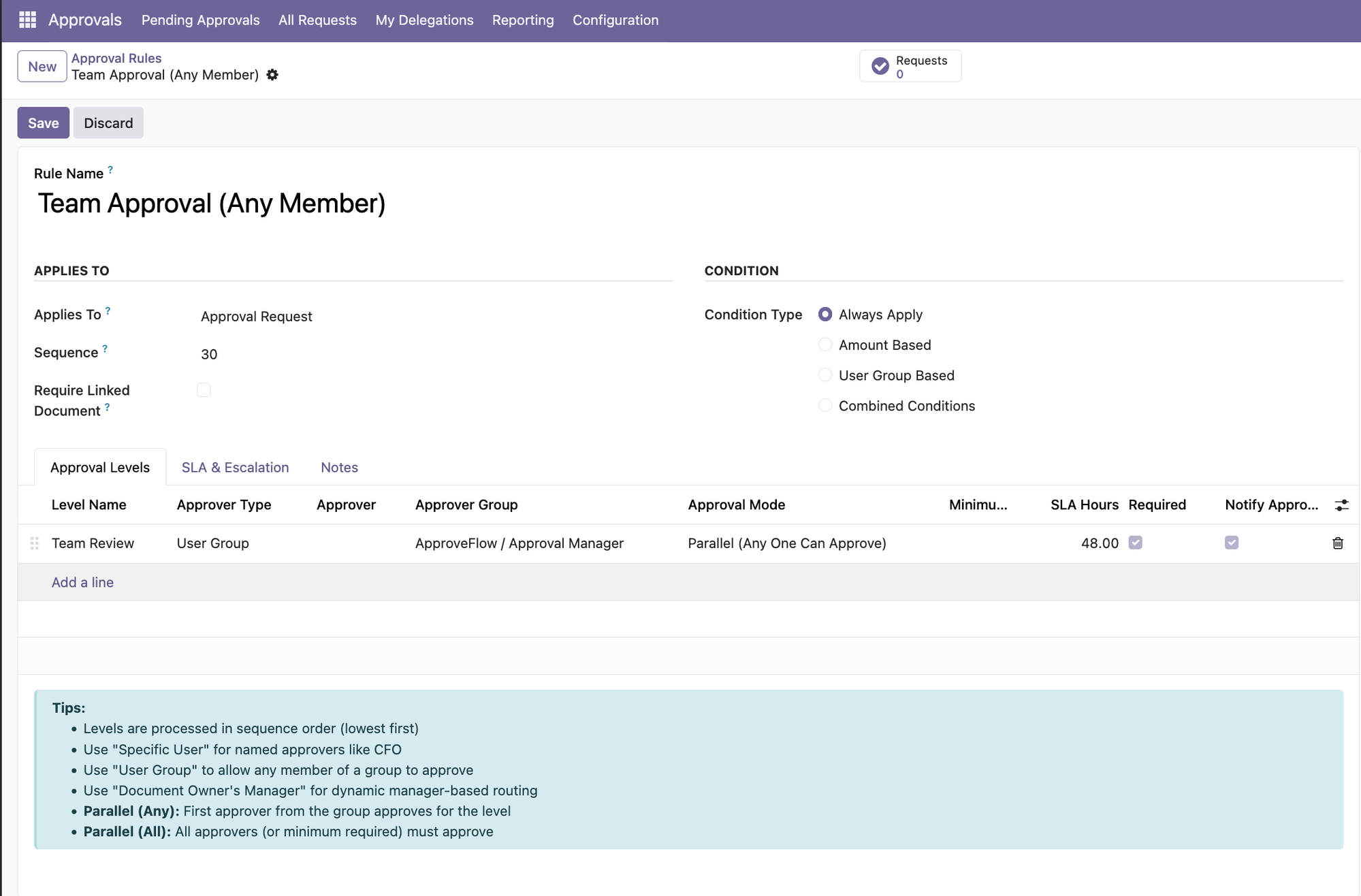
Parallel group-based rule — Any member of the Approval Manager group can approve. First to act completes the level — ideal for team queues (48h SLA).

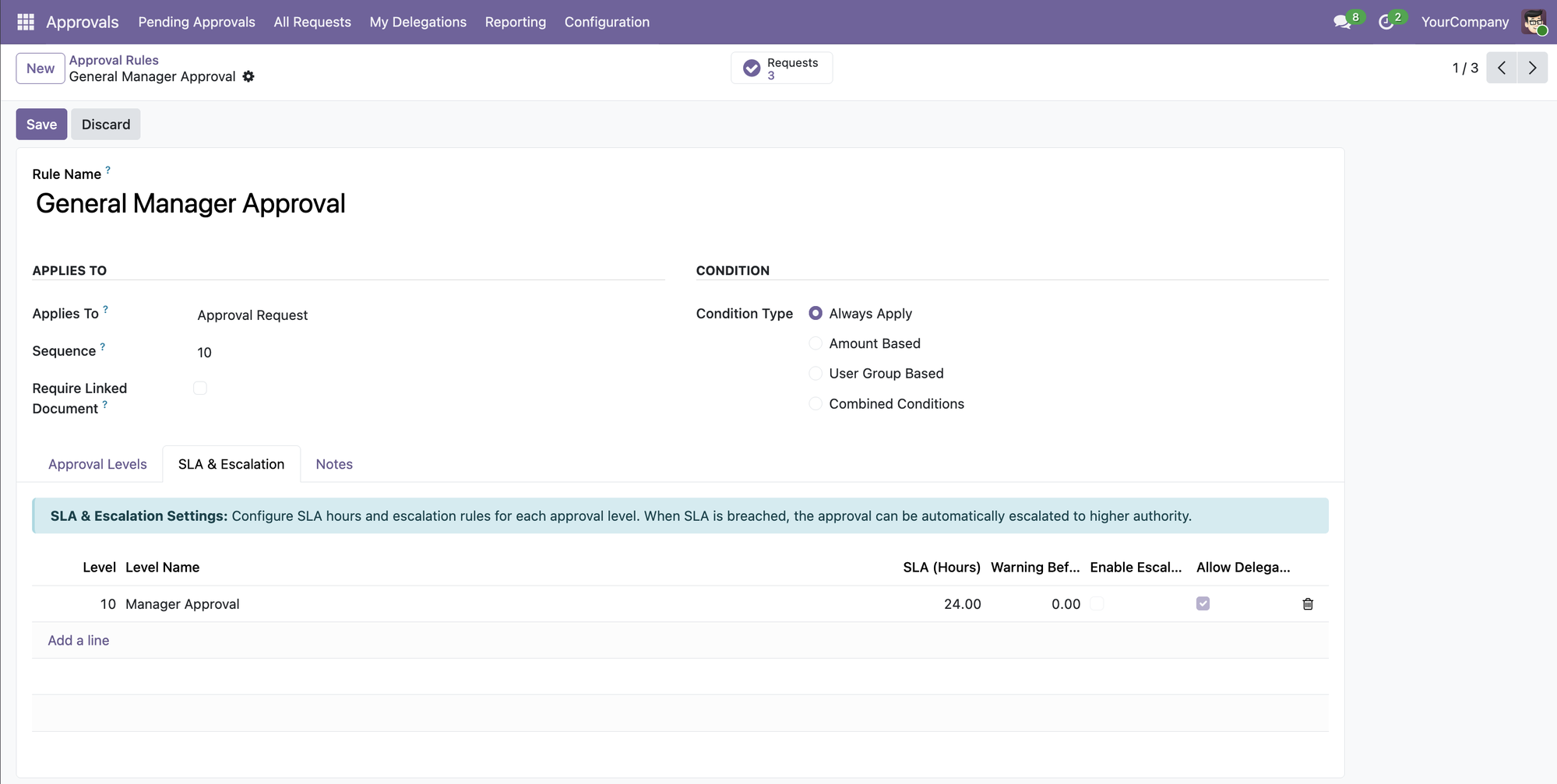
SLA & Escalation tab — Per-level SLA hours, warning threshold before breach, automatic escalation toggle, and delegation allowance — all configurable independently per level. When SLA is breached the system escalates automatically to higher authority.
4 condition types
Always Apply, Amount Based, User Group Based, Combined Conditions
3 approver types
Specific User, User Group, or Document Owner's Manager
Sequential & Parallel modes
All must approve, any one can approve, or minimum threshold
Per-level SLA hours
Set different deadlines for each approval level independently
Approval Inbox
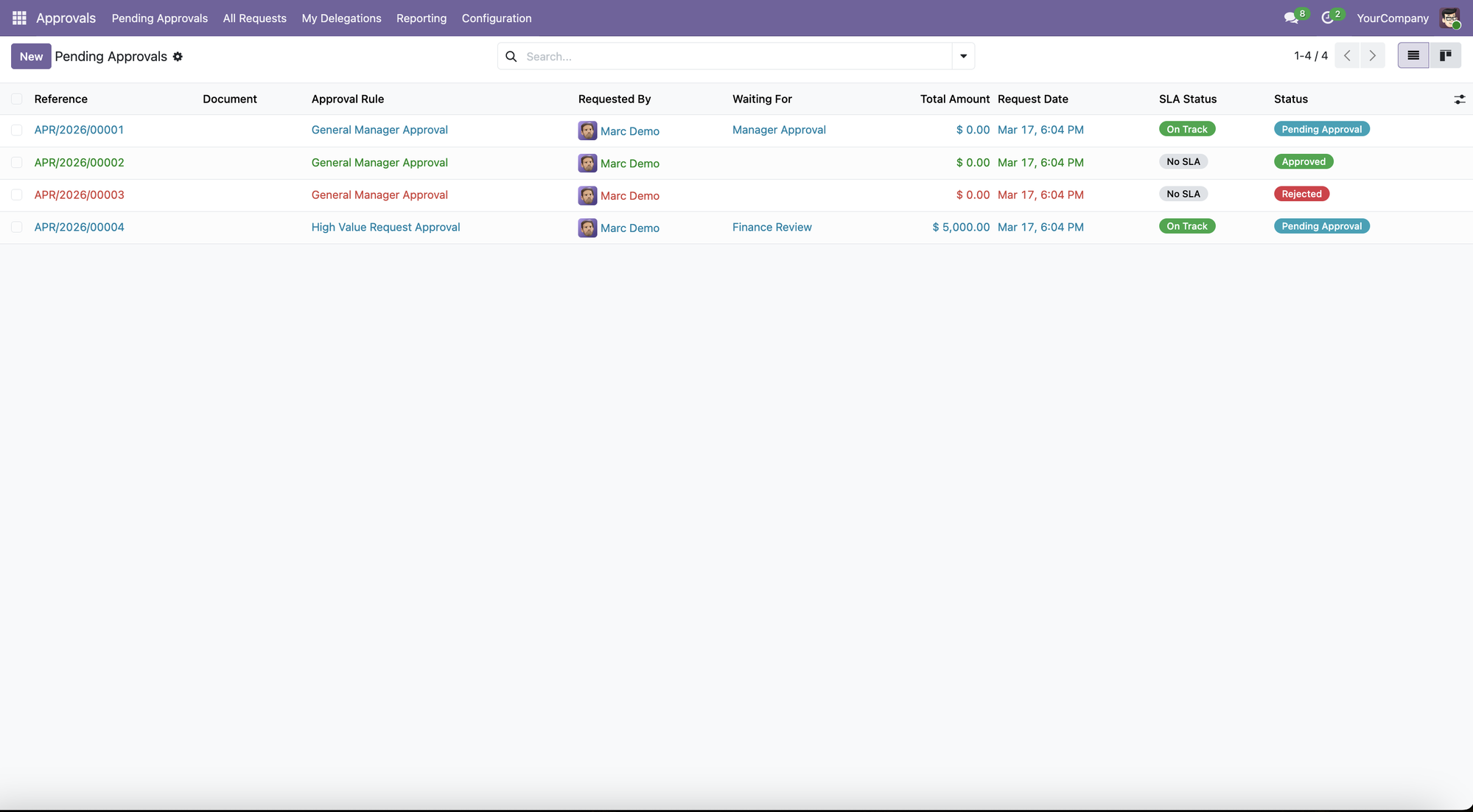
Every approval waiting for action is visible in one place — with the document, the rule that triggered it, who requested it, who needs to act, the total amount, and the SLA countdown.

Pending Approvals view — Real-time list of all documents waiting for approval. SLA Status badges show On Track (green) or overdue (red). Each row links directly to the source document.
Filtered to you
Only shows requests where you are the next approver
SLA Status badge
On Track / At Risk / Overdue — updated in real time
Waiting For
Shows which approver level is currently blocking progress
Total Amount
See the financial value of every pending request at a glance
Approval Decisions
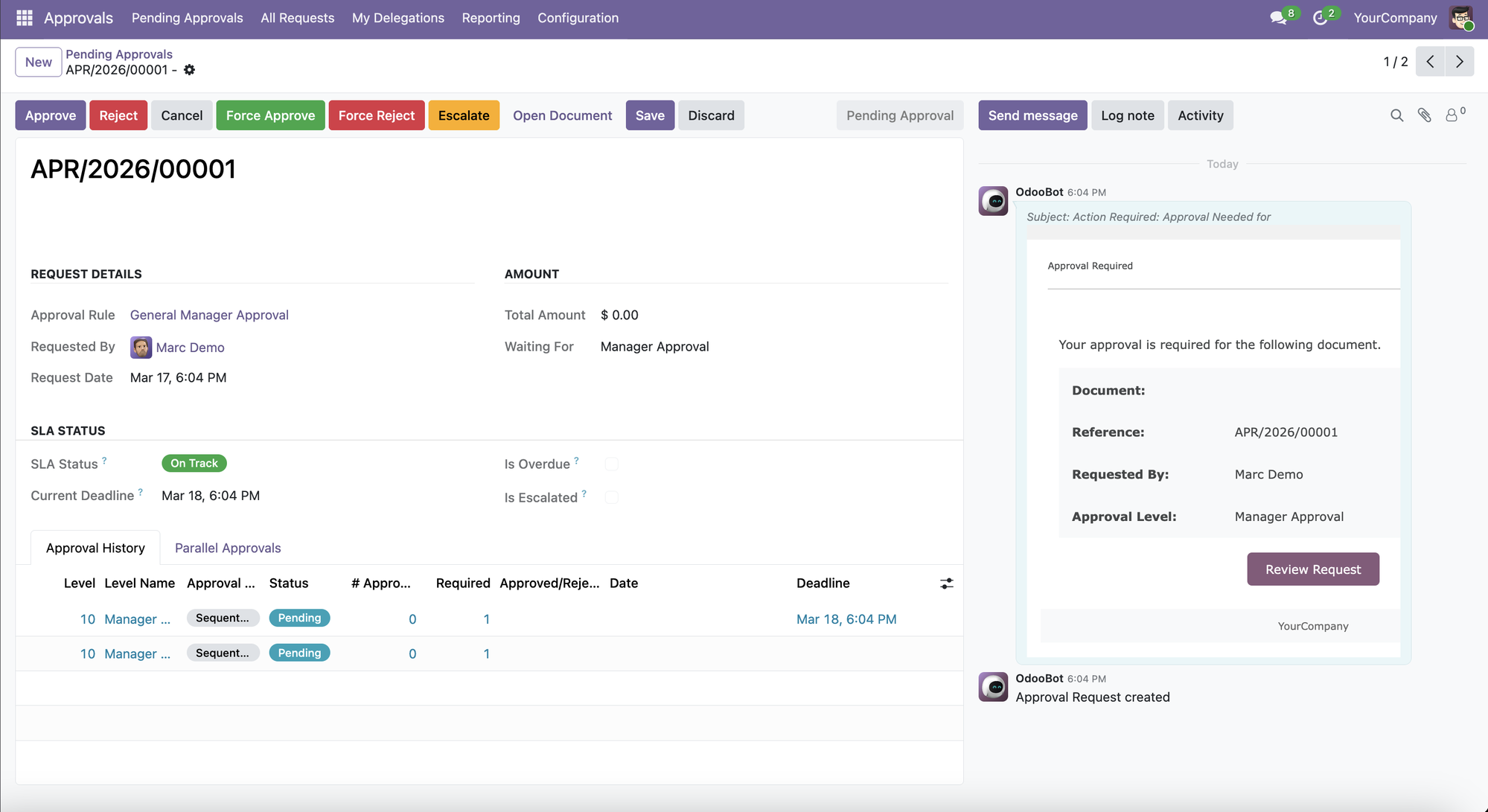
Every approval request opens as a structured form with full context — rule, requester, SLA status, approval history, and action buttons — so approvers can act immediately without leaving Odoo.

Approval Request form — Action buttons: Approve, Reject, Force Approve, Force Reject, Escalate, Cancel. SLA Status and current deadline shown inline. Approval History tab tracks every level's status and deadline.
One-click approval
Approve or reject directly from the request — no navigation needed
Force Approve / Force Reject
Administrators can override any level with a mandatory reason logged permanently
Escalate
Manually escalate to higher authority when urgent action is needed
Auto email with review link
Approvers receive an email the moment their turn arrives — click to open directly
All Requests
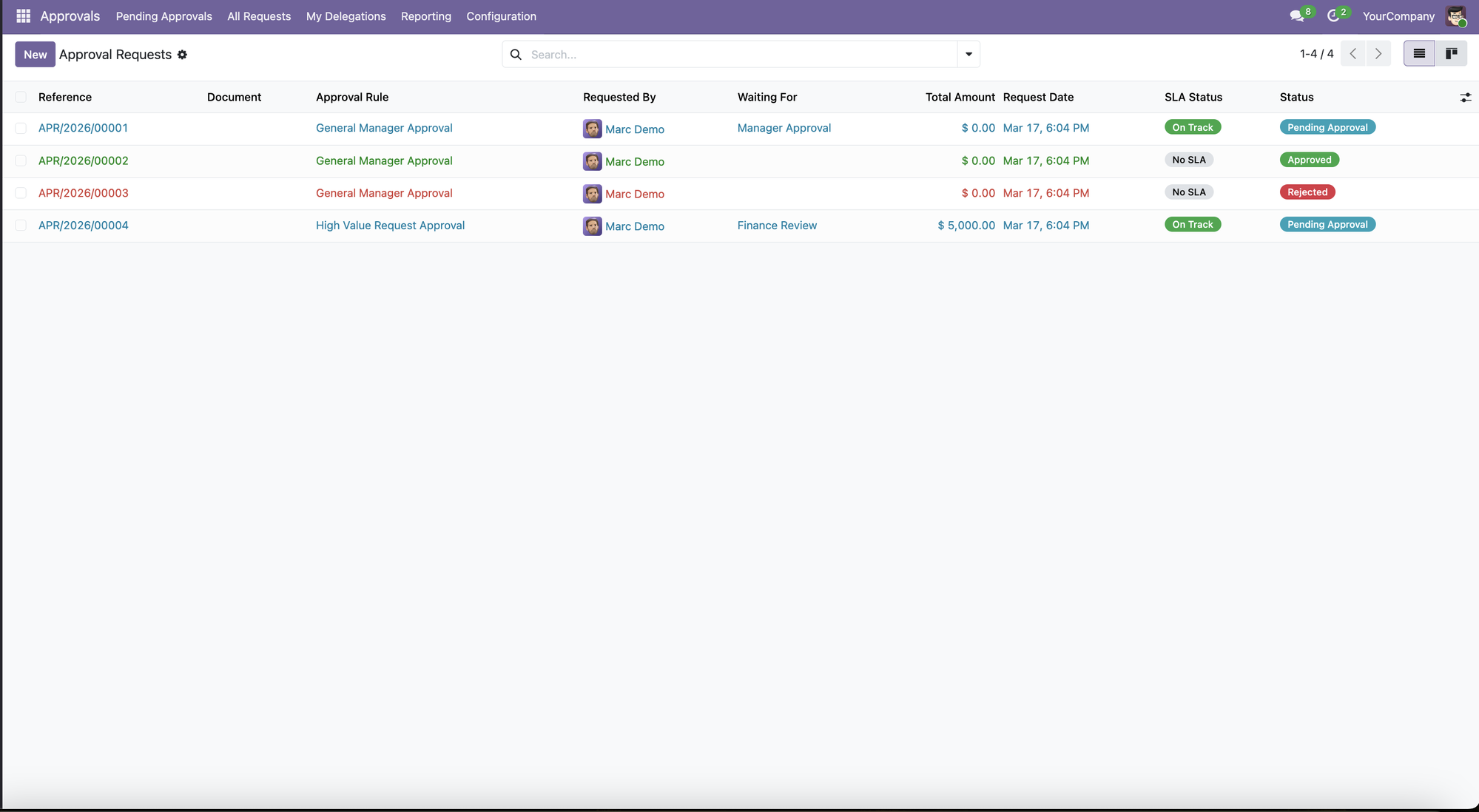
Managers and administrators see every approval request across all users and document types — regardless of status. Filter by rule, requester, date, or status.

All Requests view — Complete list with status badges: Pending Approval (blue), Approved (green), Rejected (red). Each row shows the linked document, rule applied, amount, and SLA status.
All statuses in one view
Pending, Approved, Rejected side by side
Linked to source document
Click any request to open the PO, bill, or expense
Advanced filters
Filter by rule, requester, date range, company, or status
Multi-company aware
Each company's requests are isolated from others
Delegation
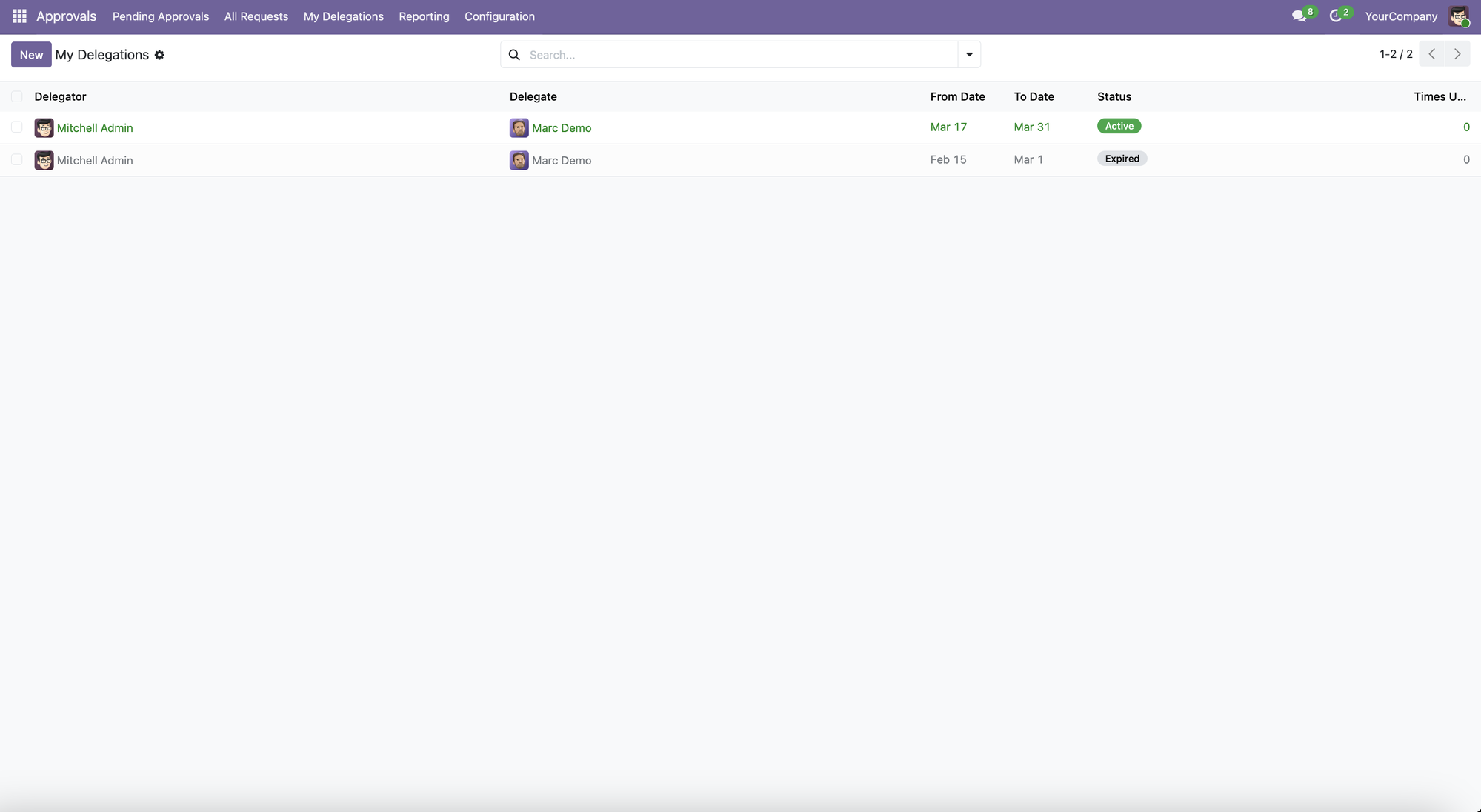
Delegate your approval authority to a colleague for a specific date range — with one click. Pending approvals are automatically re-routed to the delegate.

My Delegations view — Active delegations (green) and expired history. Shows delegator, delegate, date range, and status. Expired delegations are retained permanently for audit purposes.
Date-range based
Set exact start and end dates for the delegation period
Auto-routing
Approvals automatically go to the delegate during the active period
Delegation history
Expired delegations kept permanently for audit purposes
Delegate notified
The delegate receives email notifications for their temporary role
Analytics & Reporting
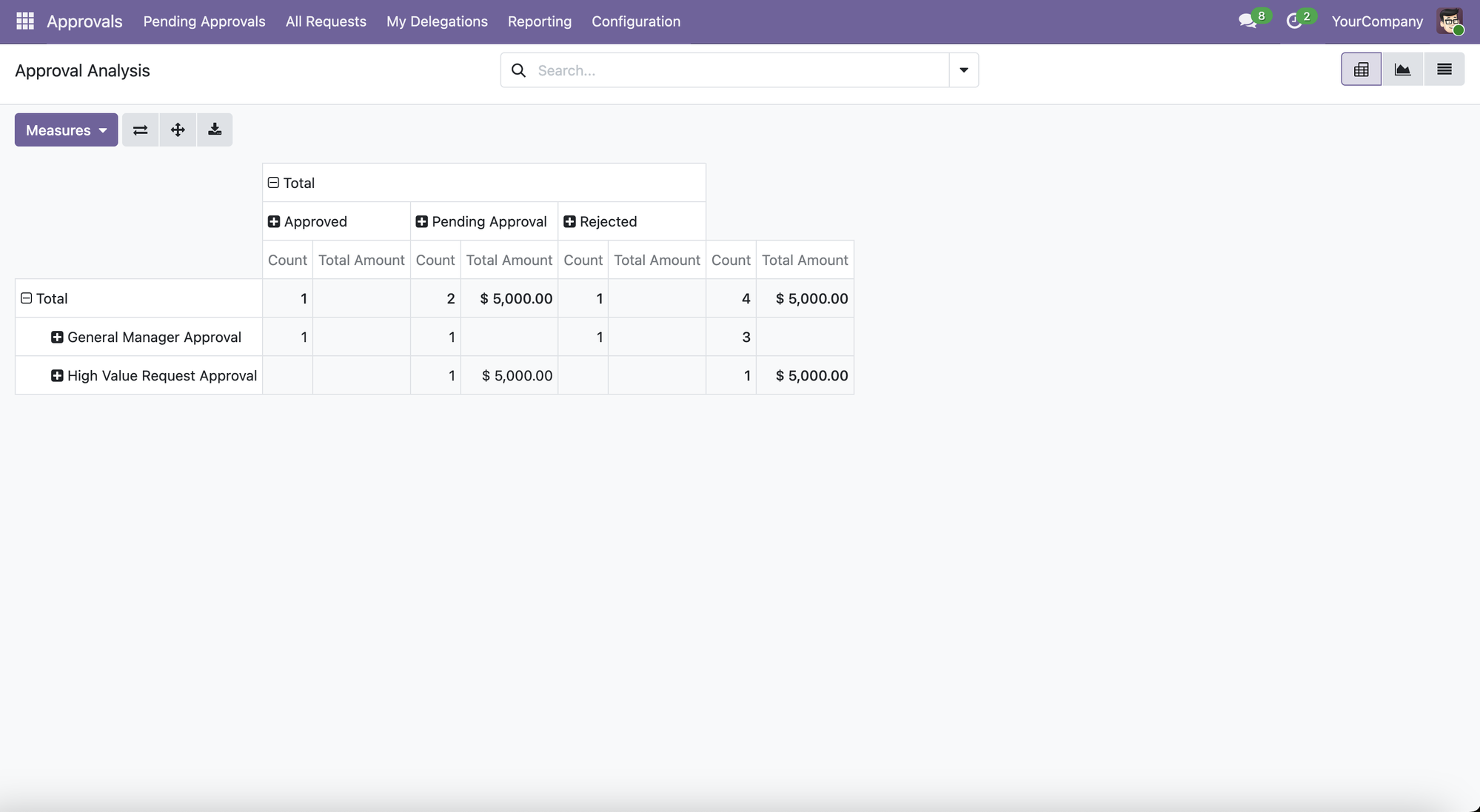
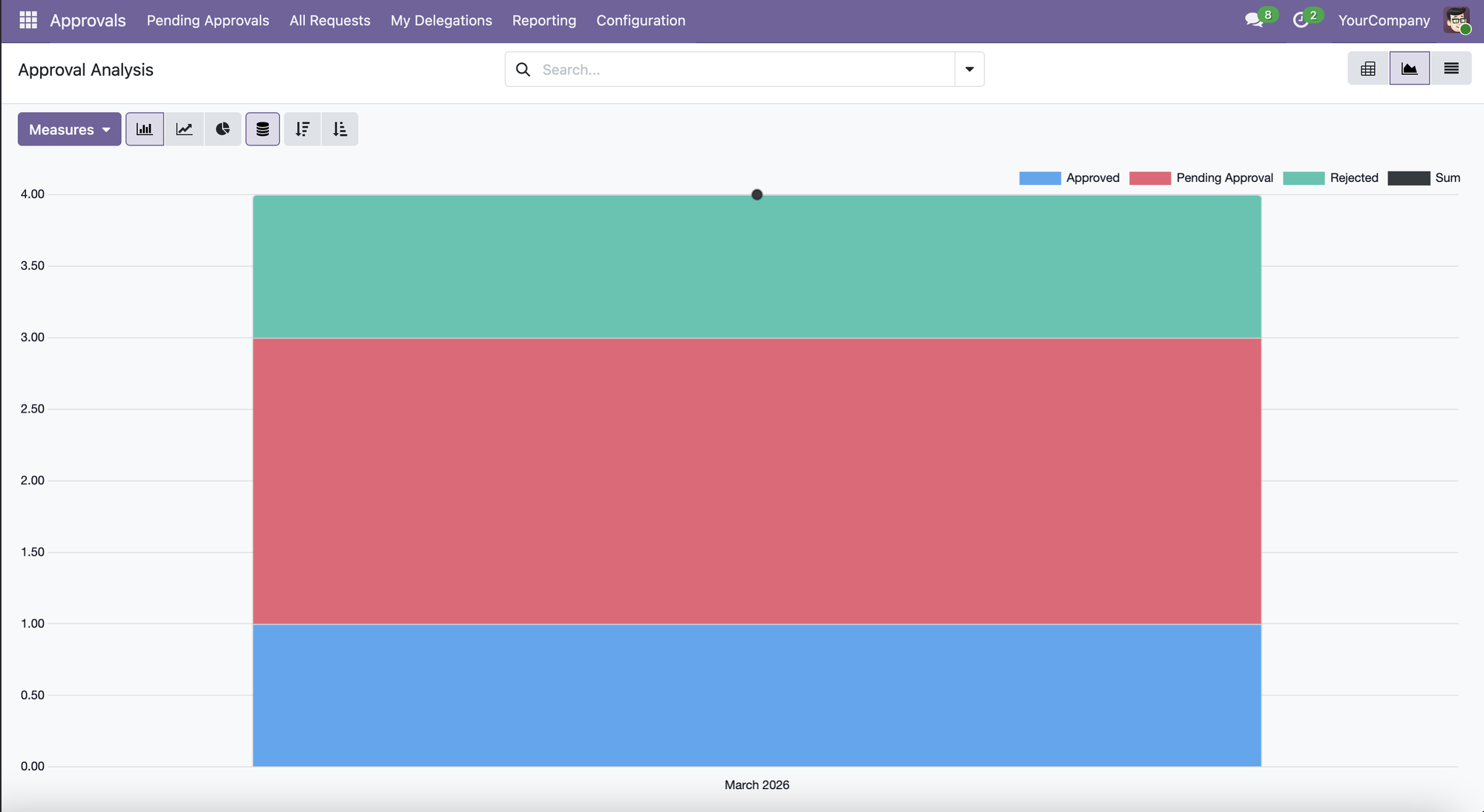
Built-in pivot table and chart views give instant visibility into approval volumes, amounts, and outcomes — broken down by rule, status, and time period. Export to Excel for management reporting.

Pivot Table — Count and total amount by rule and status. Click any cell to drill into individual records.

Stacked Bar Chart — Approved / Pending / Rejected outcomes visualized by period. Switch between bar, line, and pie.
Pivot table
Count and total amount by rule, status, company, or period
Chart views
Bar, line, and pie charts — switch with one click
Export to Excel
Download full analysis as a spreadsheet
Period filtering
Filter by day, week, month, quarter, or custom range
Audit Trail
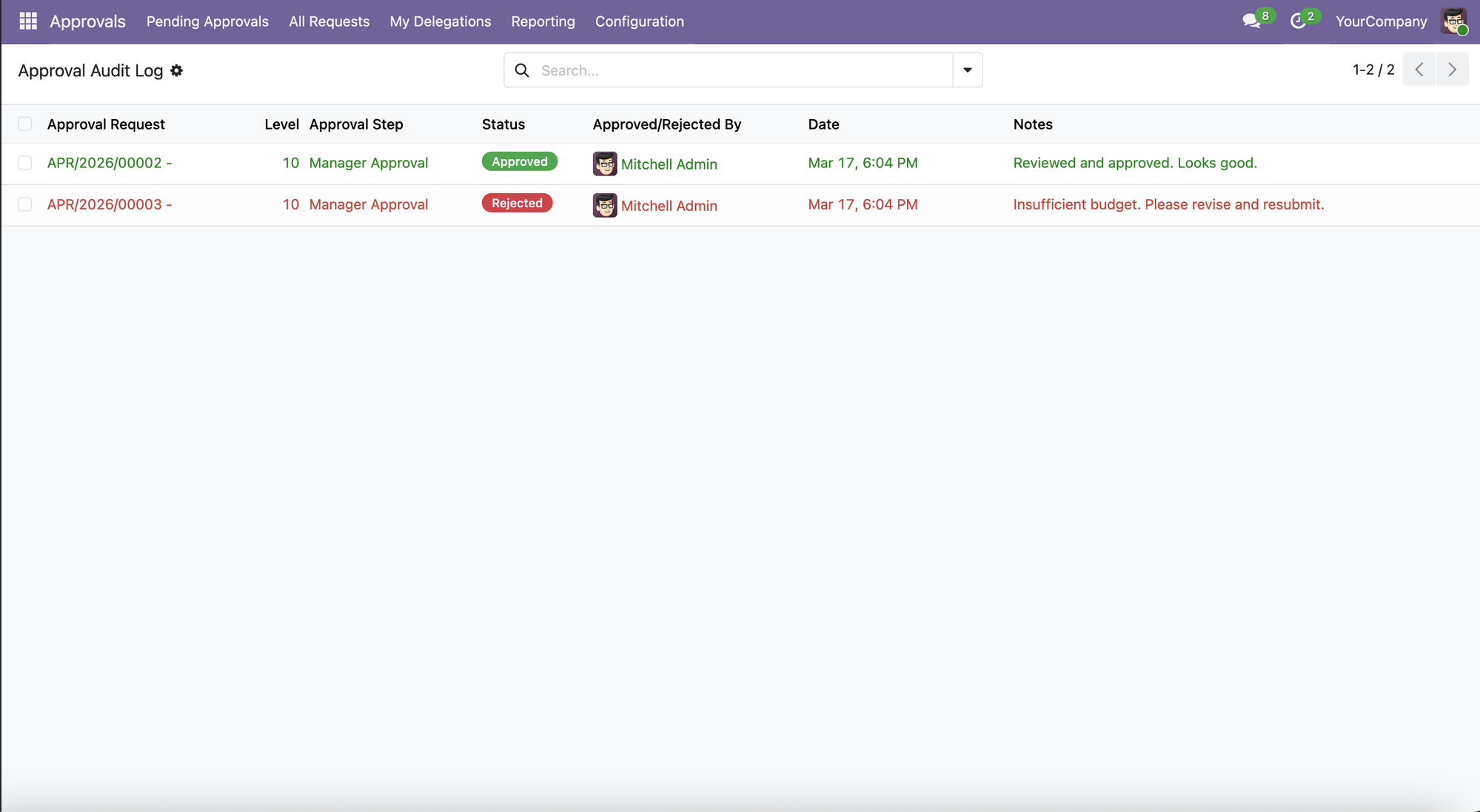
Every approval action is permanently logged — who acted, at which level, what decision was made, and any notes provided. Auditors get a tamper-proof record.

Approval Audit Log — Every action permanently recorded: request reference, level, step name, status badge (Approved / Rejected), who acted, exact timestamp, and full notes. Rejection reasons are mandatory and stored permanently.
Tamper-proof log
All entries are read-only — cannot be deleted or modified
Rejection reasons
Rejectors must provide a reason, stored permanently
Full attribution
Every action attributed to the exact user with timestamp
Admin override tracked
Force-approve/reject actions are flagged separately in the log
Access Control
| Role | Can Do | Typical User |
|---|---|---|
| Approval User | Submit documents, view own requests, receive notifications | Purchasing staff, accountants, employees |
| Approval Manager | Everything above + approve/reject/delegate, view all requests, run reports | Department managers, finance managers |
| Approval Administrator | Everything above + configure rules, levels, SLAs, force approve/reject | System admin, CFO, IT manager |
Compatibility
Pricing
Start with the Platform Engine, then add Control Packs for Accounting, Purchase, or HR as your needs grow.
Approval framework — required for all control packs
Complete Suite — Platform Engine + All 3 Control Packs
€256One license · All future updates
Get Complete Suite →First-Time Setup
After installing, grant users access to see the Approvals menu. Takes about 2 minutes.
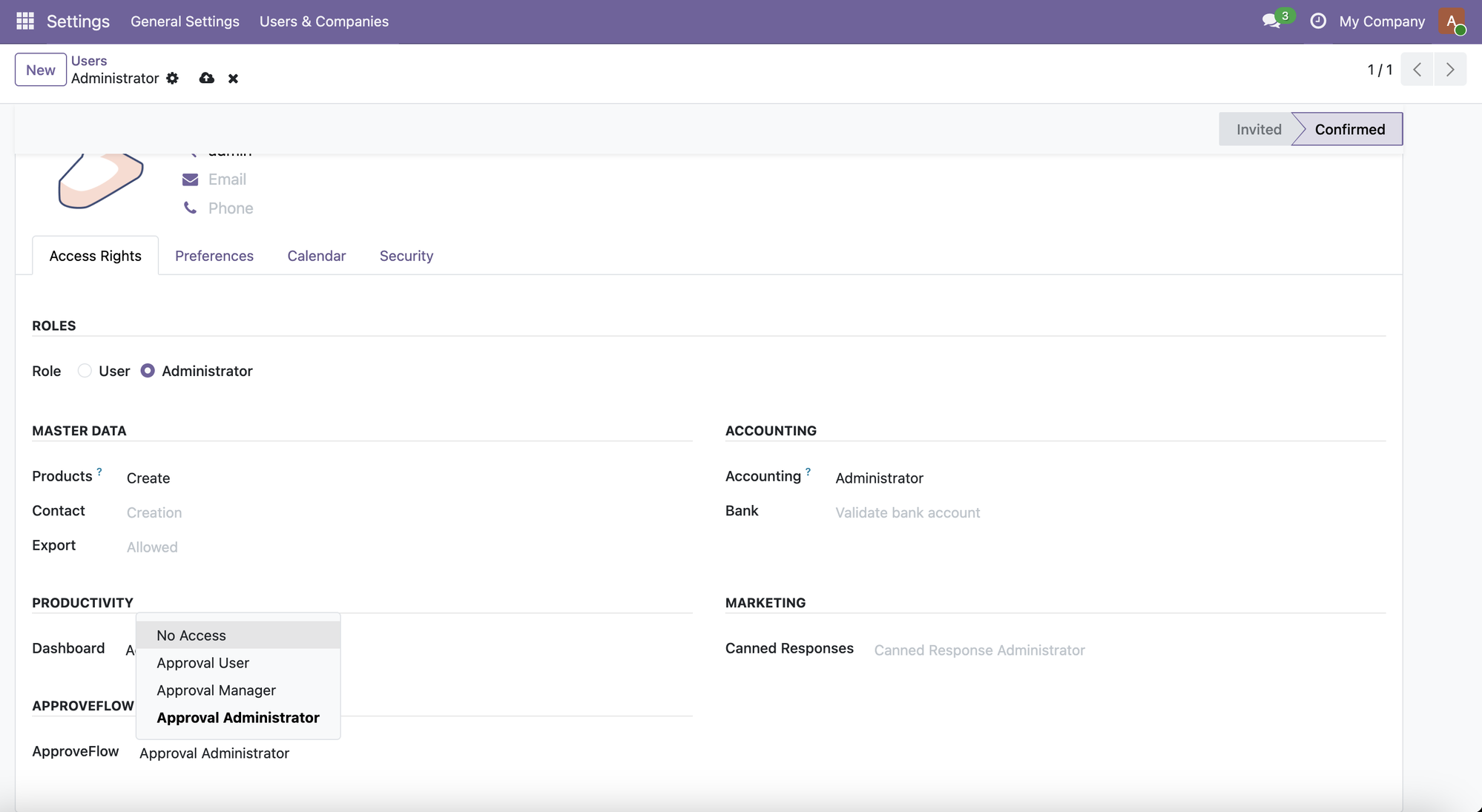
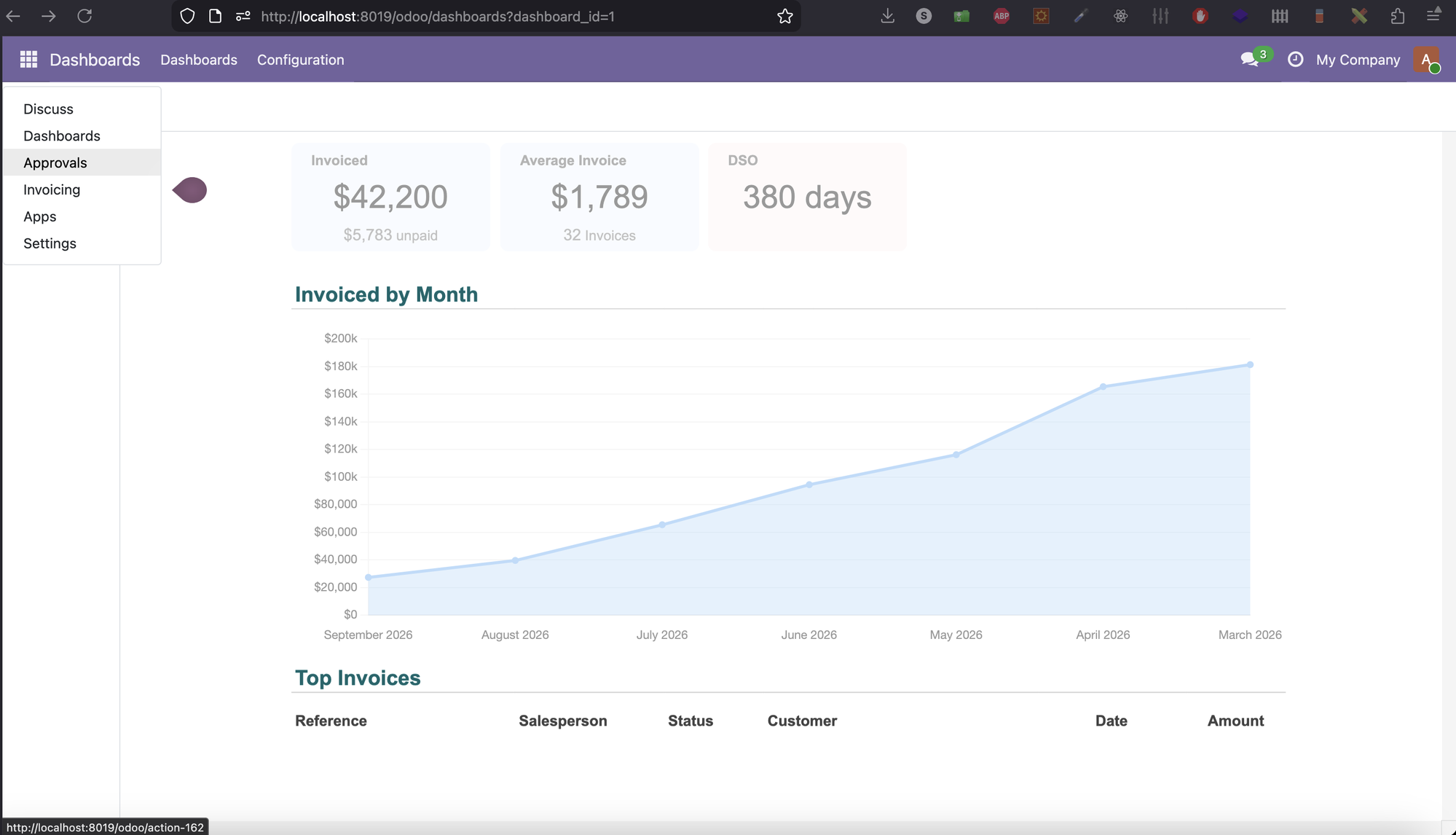
Click the main menu → Settings

In the top menu click Users & Companies → Users

Click the user you want to give approval access to (e.g. Administrator)

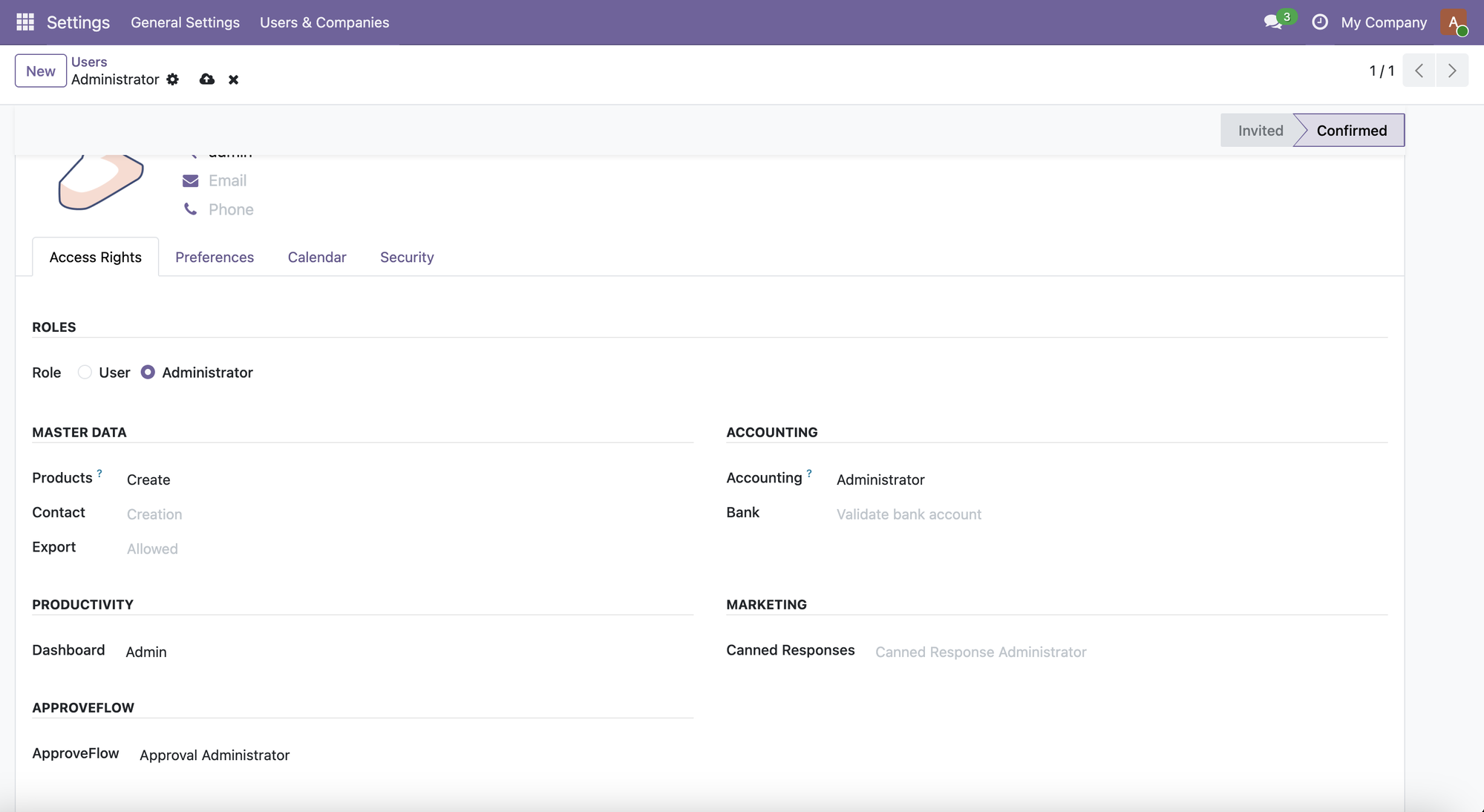
Under Access Rights tab → scroll to ApproveFlow section → select a role

• Approval User — can submit and view own requests
• Approval Manager — can approve, view all requests, access reports
• Approval Administrator — full access including configuration
Click Save (cloud icon). The ApproveFlow section will show the assigned role.

The Approvals menu is now visible in the top navigation bar. Click it to access Pending Approvals, All Requests, Delegations, Reporting, and Configuration.

Install in minutes. Configure in hours. See impact immediately.