ProductsApproveFlowPurchase Control
⚙️ Requires ApproveFlow Platform Engine

Multi-Level Purchase Order Approvals, Tiered by Spend

Stop uncontrolled purchasing. Enforce tiered approval authority before any purchase order is confirmed.

Real-World Control

What happens without PO approval enforcement?

“A purchase order for €15,000 is confirmed by a purchasing agent without any manager review. It goes unnoticed until the invoice arrives — over budget and against policy. With Purchase Control, it would never have been confirmed.”
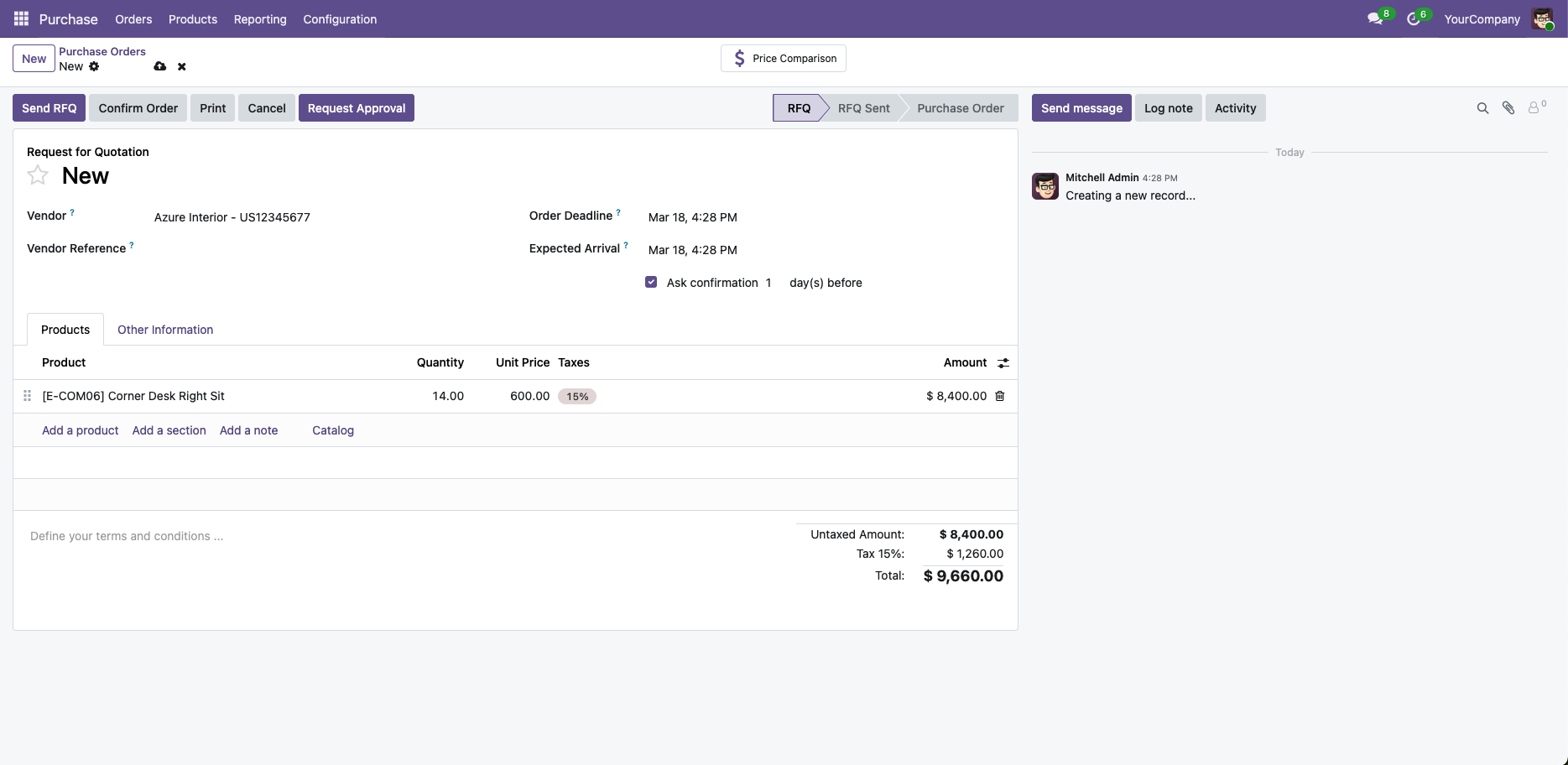
Draft purchase order with Request Approval button

Request Approval button on draft purchase orderWhen a PO exceeds the configured spend threshold, the 'Request Approval' primary button appears automatically in the header. The purchasing agent clicks it to start the workflow — confirmation is blocked until approval completes.
Hard Enforcement

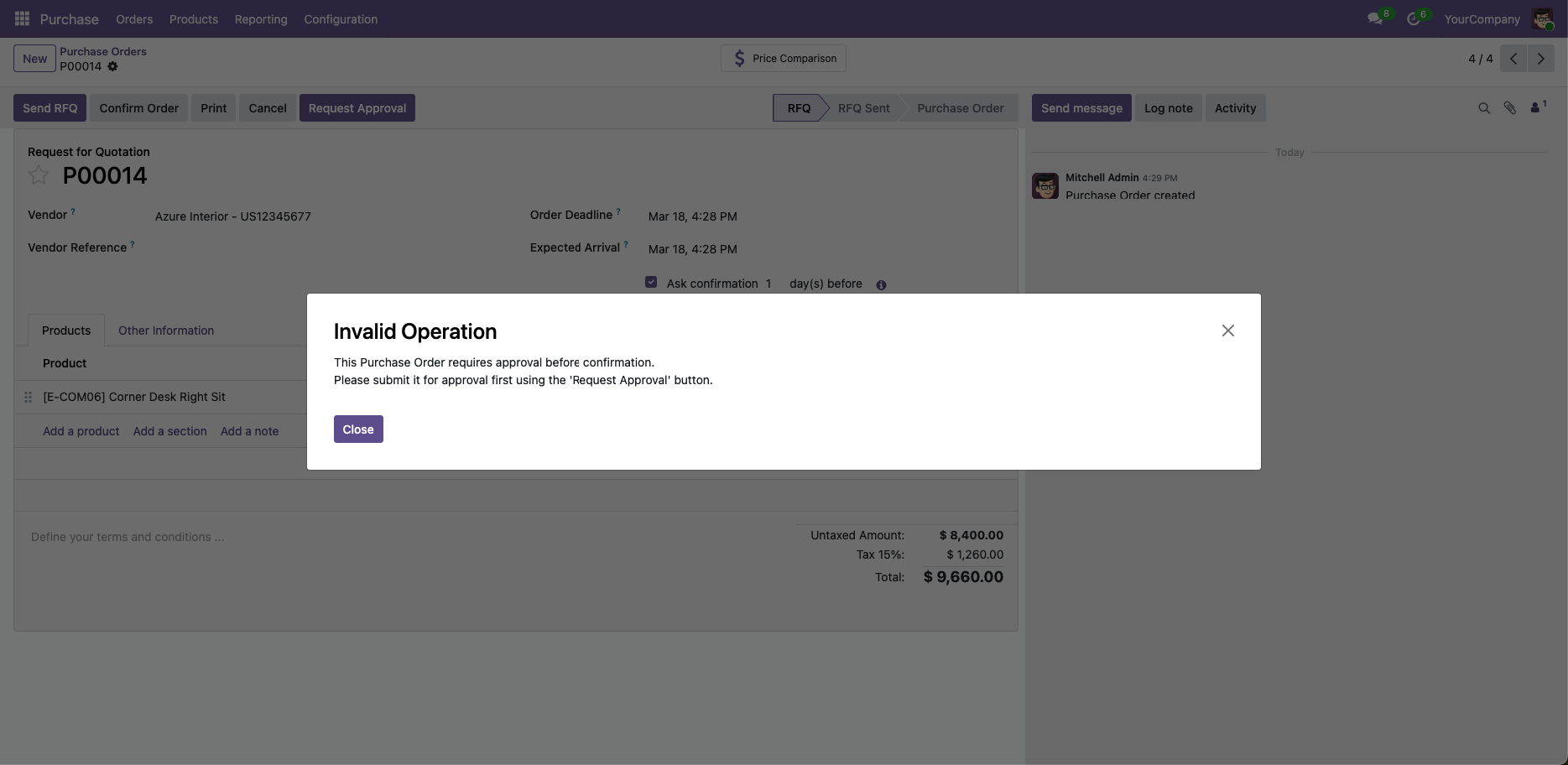
The system blocks confirmation — no exceptions

If anyone tries to confirm a PO that requires approval without going through the workflow, Odoo raises an error. There is no way to bypass it without Force Approve rights.

Invalid Operation dialog blocking PO confirmation

Confirmation blocked — approval required firstTrying to confirm a PO that requires approval without submitting it first raises this error. The system enforces the rule with no workaround for regular users.

How It Works

The full approval lifecycle on a purchase order

1

PO enters Waiting for Approval

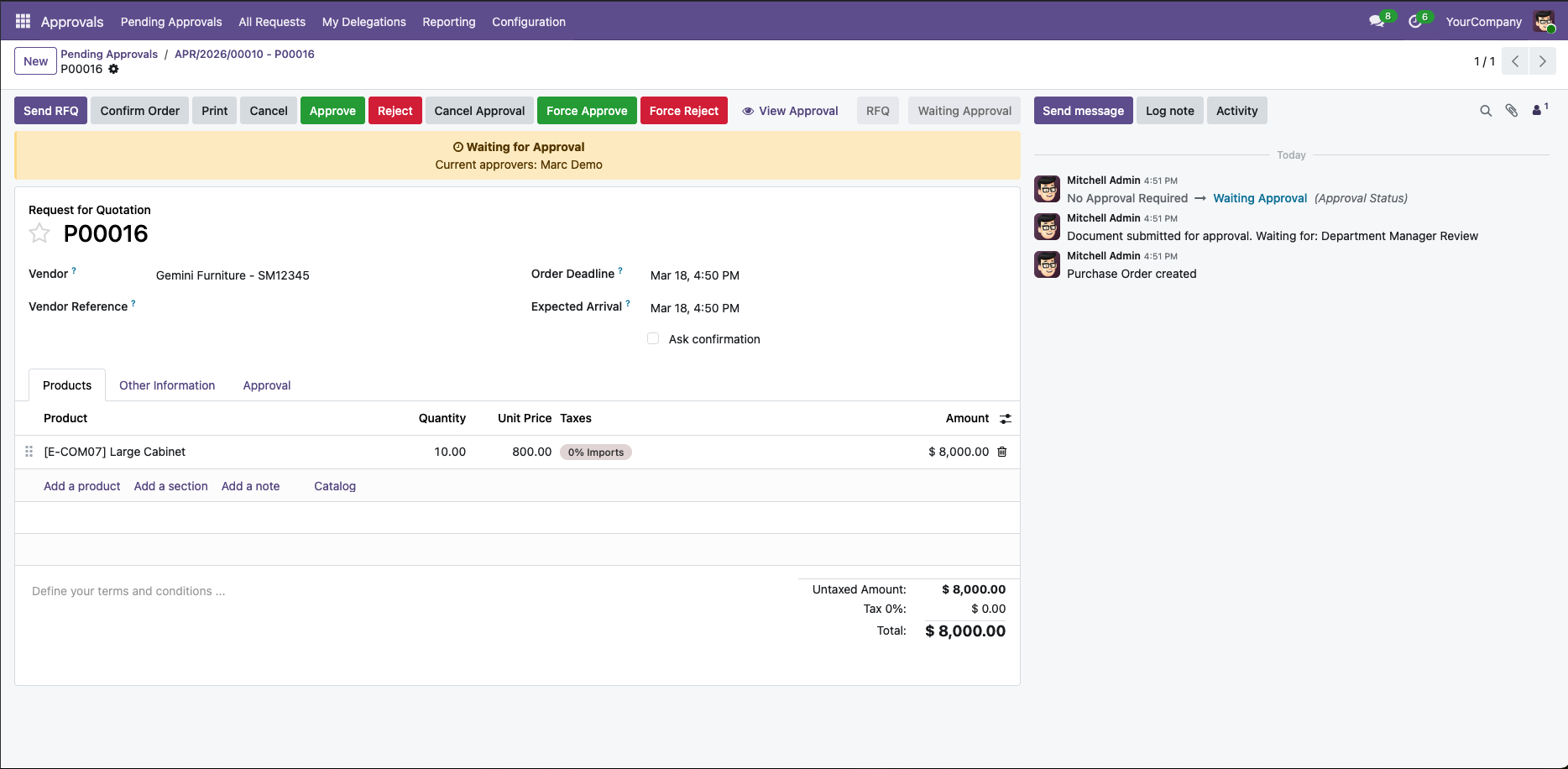
Purchase order in Waiting for Approval state

Waiting for Approval stateAfter submitting, the PO shows a yellow banner with the current approver's name. Approve, Reject, Cancel Approval, Force Approve, and Force Reject buttons are all visible. The chatter logs every state change with timestamps.

2

Approver reviews the request

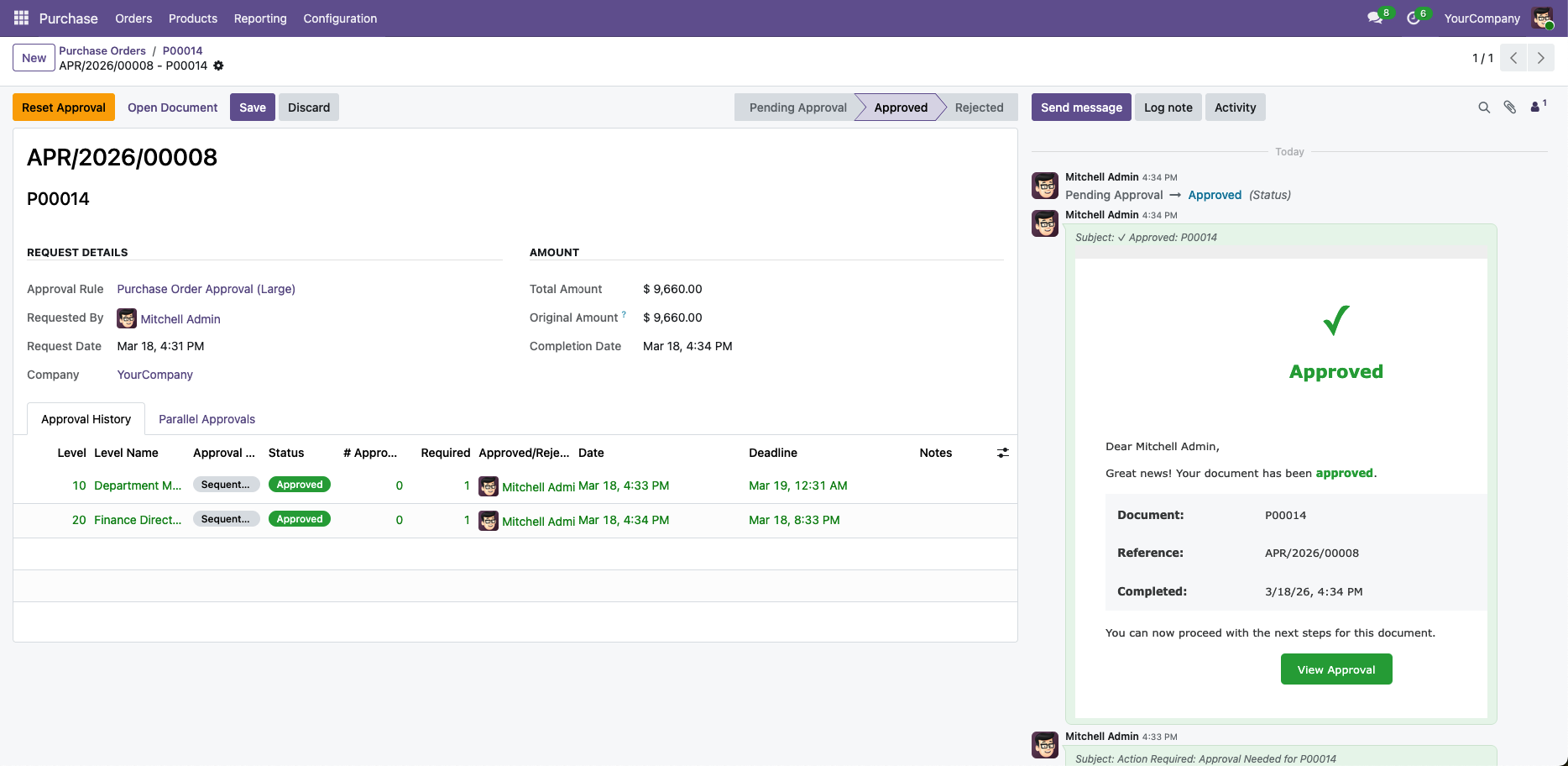
Approval request form showing approved state

Approval Request — approvedThe linked Approval Request shows full details: which rule triggered it, total PO amount, request date, and the Approval History table showing each level's status, approver, and timestamp. An automatic email notification was sent at submission.

3a

PO approved — confirmation unlocked

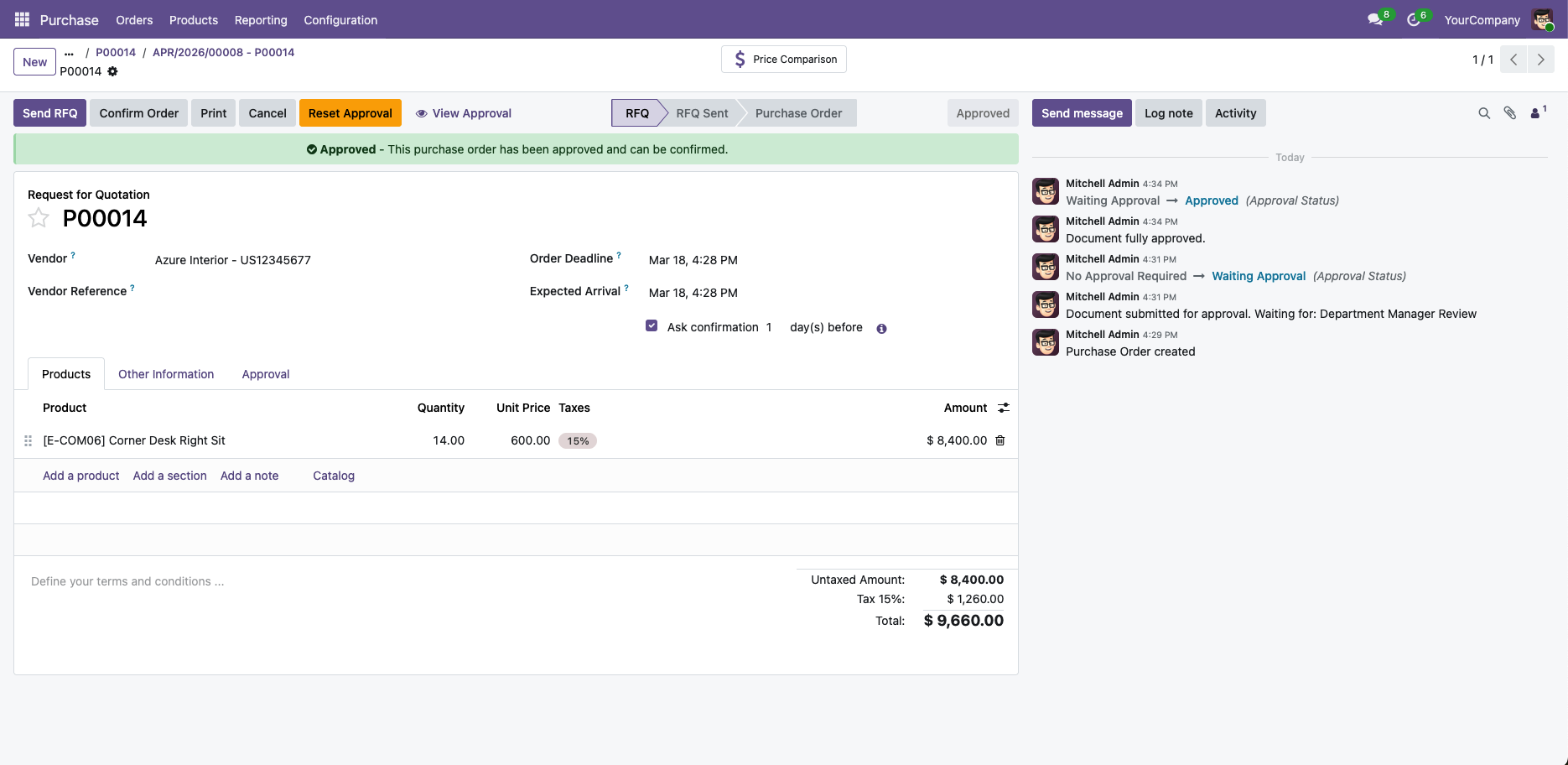
Purchase order approved with green banner

PO approved — ready to confirmOnce all approval levels pass, the PO shows a green 'Approved' banner. The Confirm Order button is now active. The chatter shows the full trail: amount change, submission, approval decision — permanently recorded.

3b

Or rejected — with reason and resubmit path

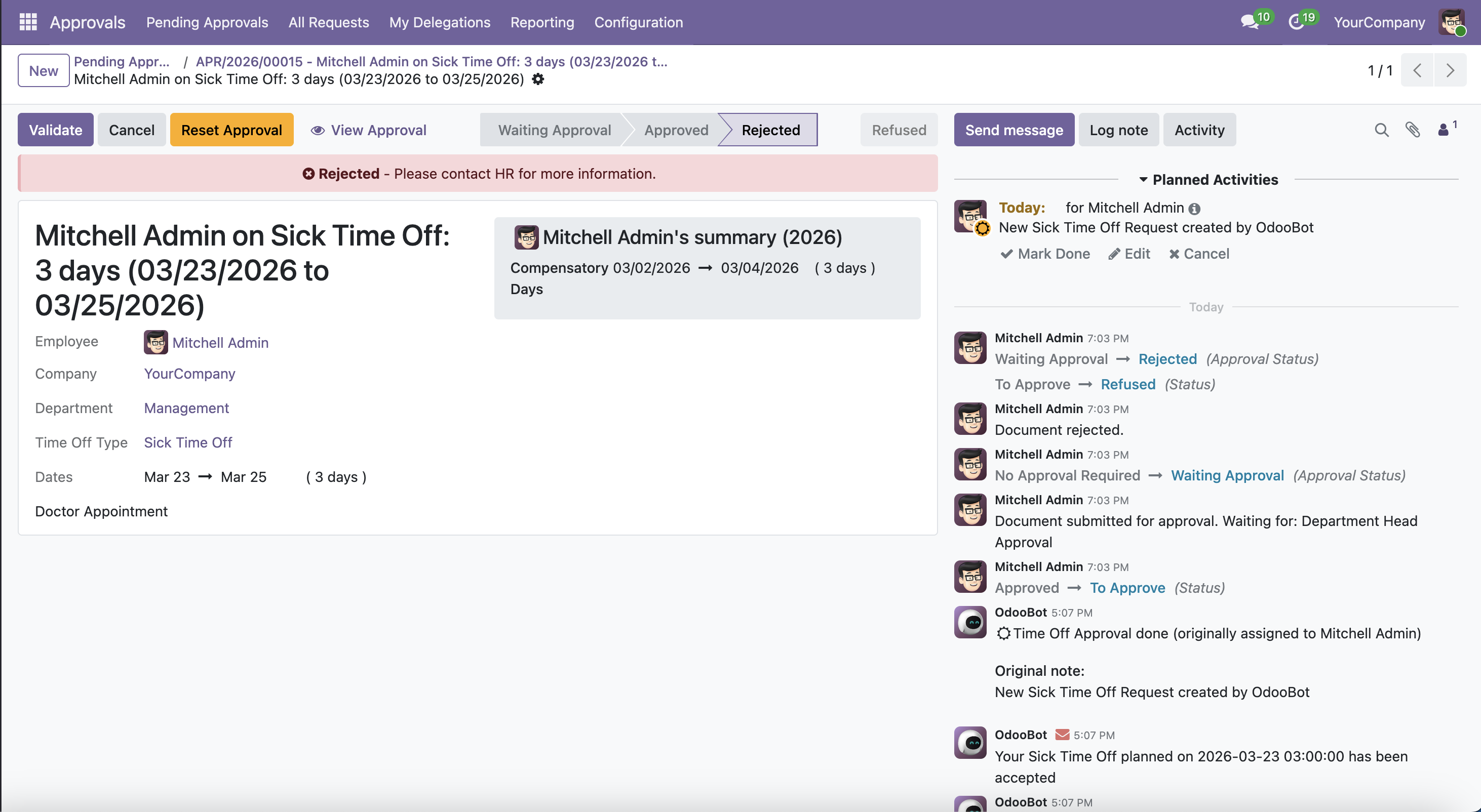
Approval request rejected with rejection reason and email

Rejection recorded on approval requestThe rejection reason is stored on the request. An automatic rejection email is sent to the requester with PO details and a link to review.

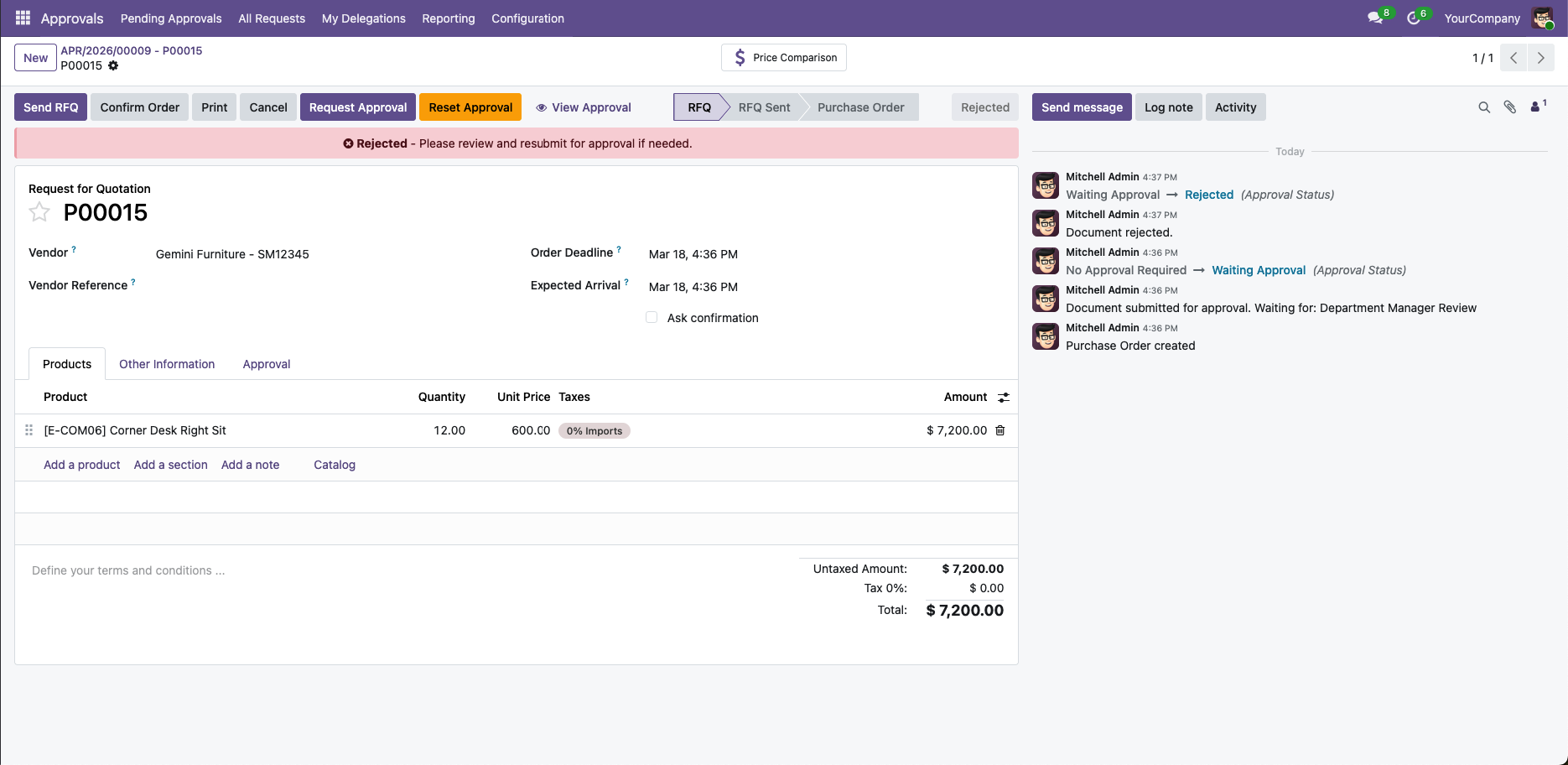
Purchase order showing red rejected banner

Rejected PO — resubmit flowThe PO shows a red 'Rejected' banner. The 'Request Approval' button reappears — the purchasing agent can revise the PO and resubmit without any admin intervention.

Configuration

Set up spend-tier rules in minutes — no code required

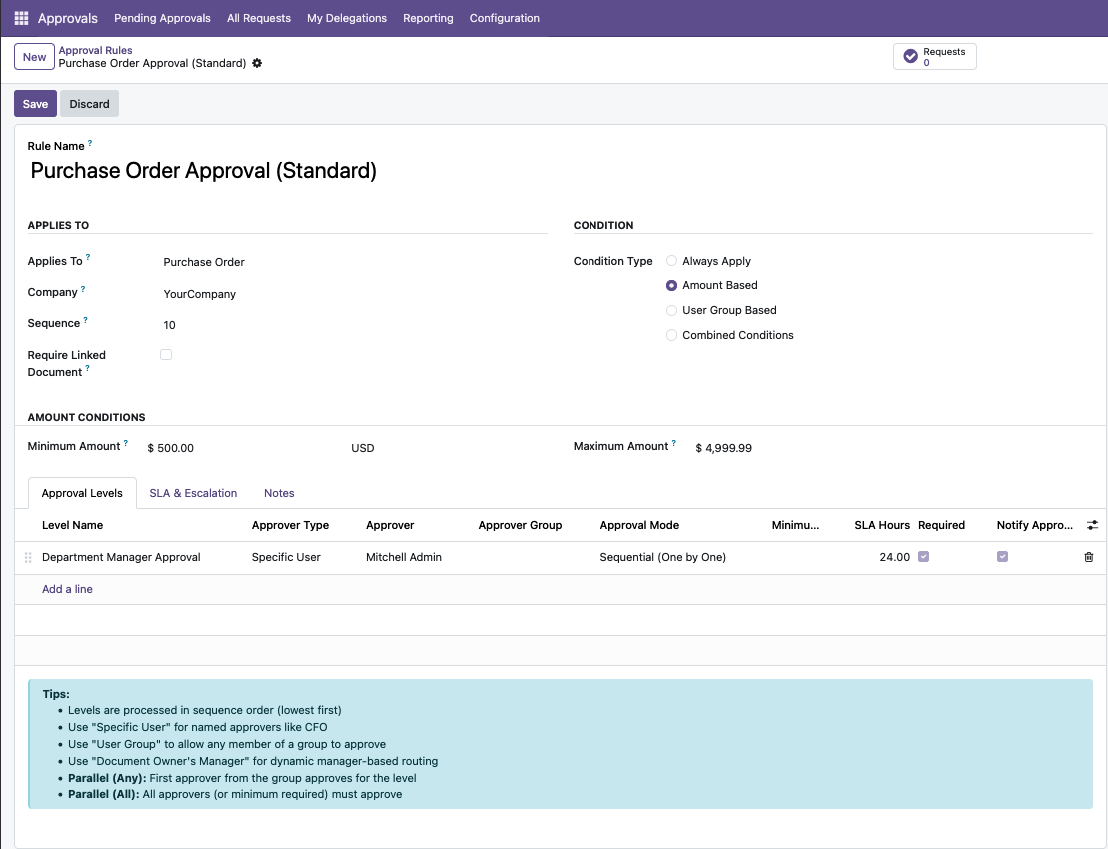
Configure which POs trigger approval, what the spend thresholds are, and who approves at each level. Everything is done through a standard Odoo form — no customization needed.

Approval rule configuration for purchase orders

Purchase Order Approval Rule — Amount BasedRule applies to Purchase Order with an amount-based condition. Define minimum spend threshold, assign approvers per level, set approval mode (Sequential or Parallel), and configure SLA hours per level.

Visibility

Approval status visible across your entire PO list

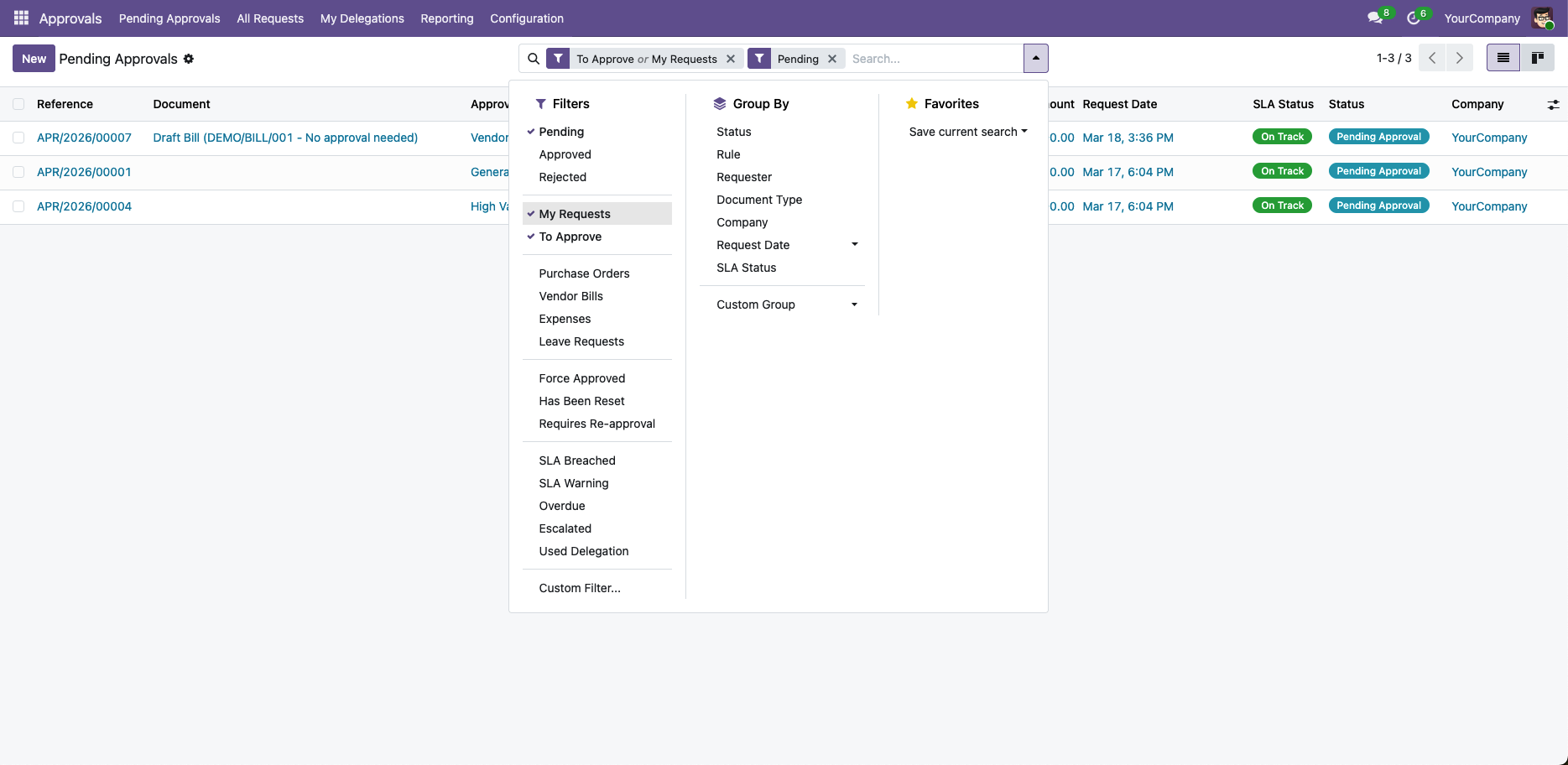
Color-coded approval status badges appear directly in the purchase order list. Filter by Pending, Approved, or Rejected workflow state in one click.

Purchase order list with approval status filters dropdown open

Approval status badges + workflow filtersThe PO list shows Approved (green) and Rejected (red) badges at a glance. The filter dropdown includes three new workflow filters: Approval Pending, Approval Approved, and Approval Rejected — making procurement queue management immediate.

Key Capabilities

What Purchase Control adds to ApproveFlow

🚫

PO confirmation gate

Purchase orders cannot be confirmed until all required approvers sign off

📊

Spend-tier routing

Different approval chains trigger automatically at configurable spend thresholds

🔄

Re-approval on changes

Significant order line edits while pending automatically restart the workflow

📧

Automatic notifications

Approvers receive instant emails with approve/reject links

🛡️

Audit-ready activity history

Every approval decision logged with user, timestamp, and reason

🔍

Approval status filters

Filter POs by Pending / Approved / Rejected workflow state instantly

Operational Impact

What changes after deployment

Procurement teams maintain spend discipline without adding process friction — approvals happen automatically in Odoo, not over email.

Compatibility

Odoo 19Community EditionEnterprise Edition

⚙️ Requires ApproveFlow Platform Engine

This control pack runs on the ApproveFlow Platform Engine — the approval rule engine, SLA system, inbox management, and audit trail used by all control packs. The Platform Engine is available from €79 launch price.

Learn about the Platform Engine →

Pricing

Simple one-time pricing

ApproveFlow Platform Engine

€79launch / €99 regular

Approval framework — required for all control packs

Purchase Control Pack

€59launch / €79 regular

PO confirmation gate with spend-tier routing and audit trail

Deploy both together for €138 during launch

Buy on Odoo App Store →

Already have the Platform Engine?

Add the Purchase Control Pack for just €59 — no bundle required.

Get Pack Only →

Deployment Effort

Fast to install, nothing to build

Frequently Asked Questions

Can I set different approval chains for different spend amounts?

Yes. You can configure multiple spend tiers — for example, ≥€1,000 requires Manager approval, ≥€10,000 requires Director approval, ≥€50,000 requires CFO approval.

Does it block PO confirmation completely?

Yes. The Confirm Order button is disabled and the PO state is locked at 'Waiting Approval' until the approval workflow completes.

Can I route specific suppliers through dedicated approvers?

Yes. Rules can target specific vendor categories or individual vendors, regardless of order amount.

What happens if an approver is on leave?

The SLA timer triggers automatic escalation after the configured deadline. Users can also set up delegation periods in advance.

You Might Also Need

Enforce procurement control in Odoo today.

Stop unbudgeted purchases before they happen — automatically.